
Unit Front Panel
The unit front panel allows you to:
Configure the unit
Start/stop a live
Start/stop a record
Forward stored files
Edit various unit settings
Home Menu
The Home Menu provides easy access to each option:
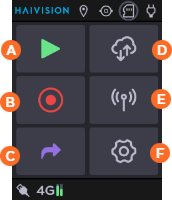
 Start a Live
 Start a Record
 Forward Stored Files
 Configuring Data Bridge
 Configuring Network Interfaces
 Settings Menu
Settings Menu
The Settings Menu provides the following icons:
 Story Configuration (Optional)
 Input/Output Settings
 Network Settings
 Destination Profiles
 Live Profiles
 Record Profiles
 Forward Settings
 BGAN Settings
 SD card Management
 Device Settings
 Device Information
Status bar
On the front panel the status bars on the top and bottom of the panel, icons indicate the unit state. For example:
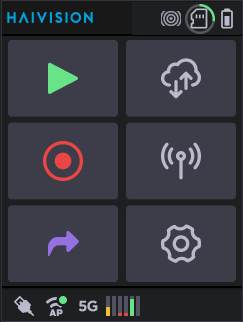
Unit Panel Sample
Status Icon | What it means |
|---|---|
| Battery levels. |
| BGAN connection. |
| Bars Pattern selected. |
| Black Pattern selected. |
| Circles Pattern selected. |
| Cellular connections and their signal levels. (5G for Pro360-5G only) |
| Data bridge enabled. See Configuring a Data Bridge. |
| Ethernet connections. |
| HDMI input selected but no received stream. |
| HDMI input selected receiving a stream. |
| Intercom communication with master room. See Using the Intercom. |
| Live at startup (if enabled). See Enabling/Disabling Auto-Live at Startup. |
| Location (enabled; disabled, unknown). See Enabling/Disabling the Unit Location. |
| Stories selected if the unit is linked with a Manager supporting the Story Centric Workflow. See Selecting a Story. |
| One or two USB keys and the memory space used. |
| SD card detected and memory space used. |
| SD card in Hot Folder mode. See Transmitting Files via the Hot Folder. |
| SD card locked. Add, change or remove content on the card cannot be done if locked. Remove SD card and slide the Lock switch on the side of the card. |
| SDI input selected but no received stream. |
| SDI input selected receiving a stream. |
| Unit connected to power supply. |
| Video Return enabled and receiving a stream. See Receiving a Video Return. |
| Wi-Fi connection configured in access point mode. See Configuring a Wi-Fi Access Point. |
| Wi-Fi connection in client mode. |


