
Signing in to Your Hyper-V VM

Important
After the VM starts, it may take up to 3 minutes for all services to launch, the Kraken sign-on screen to appear, and sign-on to be possible. Please be patient if sign-on fails initially.
Accessing the Web Interface

Note
Internet Explorer is no longer supported. We recommend using Microsoft Edge or Google Chrome.
Open a new tab in your browser and enter the IP address you noted in Creating a Hyper-V VM from VHDX Disks.
The sign in screen appears. Sign in using one of the credentials provided on the Important Notice included with your device.
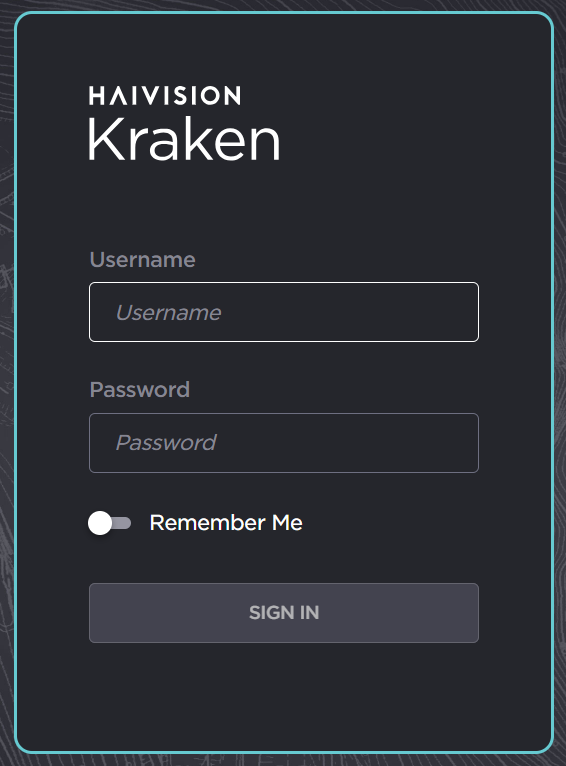
Click the Sign In button. A License Required modal appears. See Licensing the Hyper-V VM to obtain a license.