
Editing the Input and Output
You can change the settings of inputs and outputs either directly via the Inputs and Outputs tabs or within any existing routes themselves.
In the sidebar, click Streaming.
Select the Inputs or Outputs tab, if you wish to edit an input or an output.
Find the input or output you wish to edit in the list.
Click the icon of the input/output you are interested in.
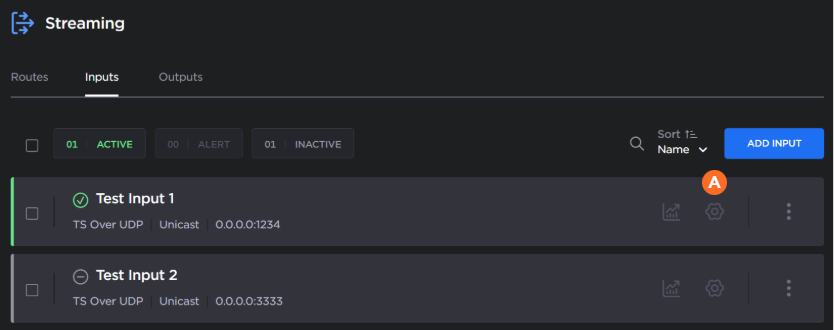
The settings pane opens. Adjust the settings as desired. See Step 1 Add Input and Step 2 Add Output, respectively, for definitions of the fields.
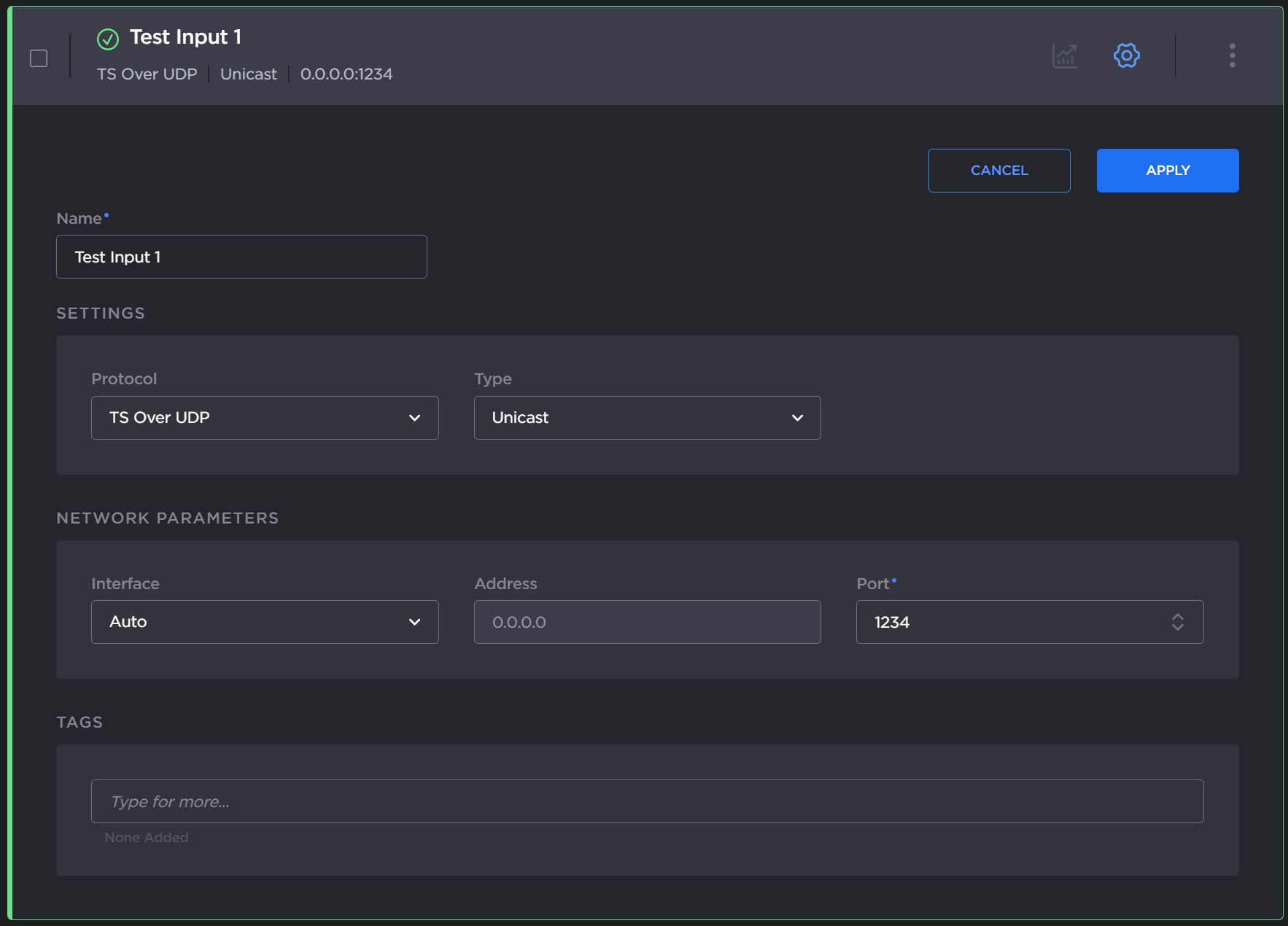
Click the Apply button.
After a few seconds the input or output settings are updated, and your changes take effect.
In the sidebar, click
 Streaming.
Select the Routes tab and find the route you wish to edit from the list that appears.
Click the
 icon
icon  of the route you are interested in.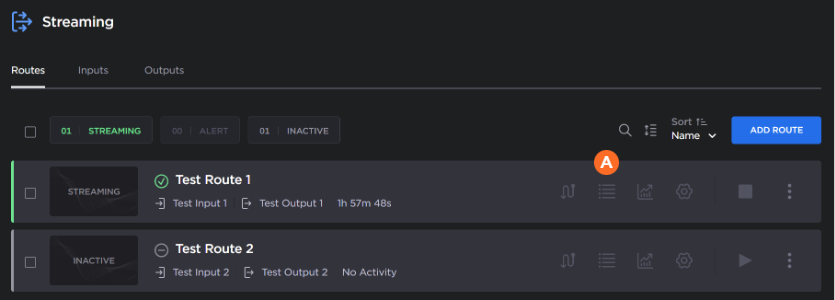
When the inputs/outputs pane appears, you can view a summary of each of the route’s input and outputs.
Find the input or output you wish to edit and click the
 icon
icon  .
.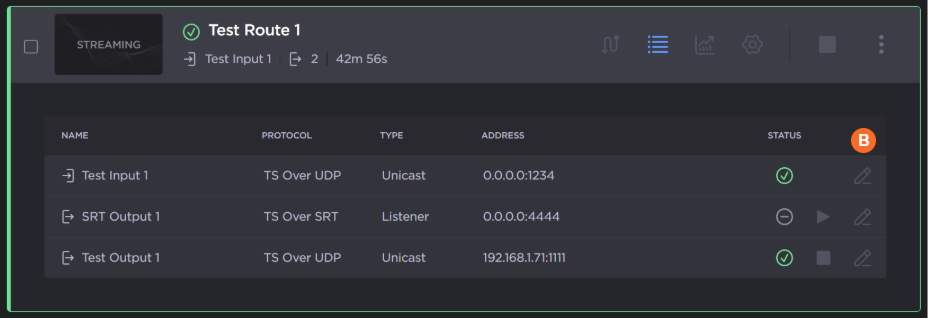
The Edit Input or Edit Output dialog opens. Adjust the settings as desired. See Step 1 Add Input and Step 2 Add Output, respectively, for definitions of the fields.
Click the Apply button.
You are returned to the Routes tab, where after a few seconds the input or output settings are updated, and your changes take effect.