
Creating a Live SRT Stream Using a Mobile Device
With Play Pro's Stream function, you can use your mobile device as a low latency contribution source for live SRT streams.

Note
An existing Local Lineup that can be edited is required for this task. For help creating a new lineup, see Creating a Local Lineup.
To learn more about setting up and deploying SRT, as well as version compatibility history, see the SRT Deployment Guide.
To create an SRT stream channel:
Tap the
 icon to open the side menu.
Select
 Manage Services.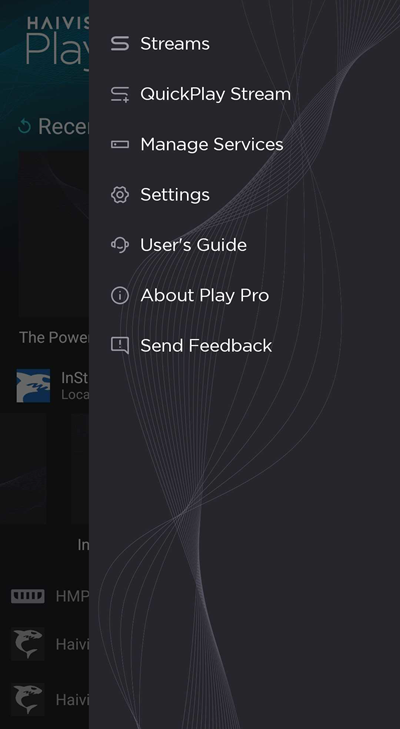
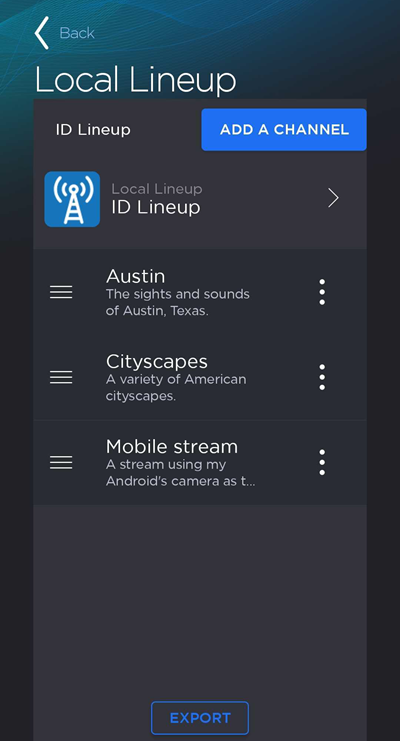
On the Services screen, tap the Local Lineup you wish to edit.
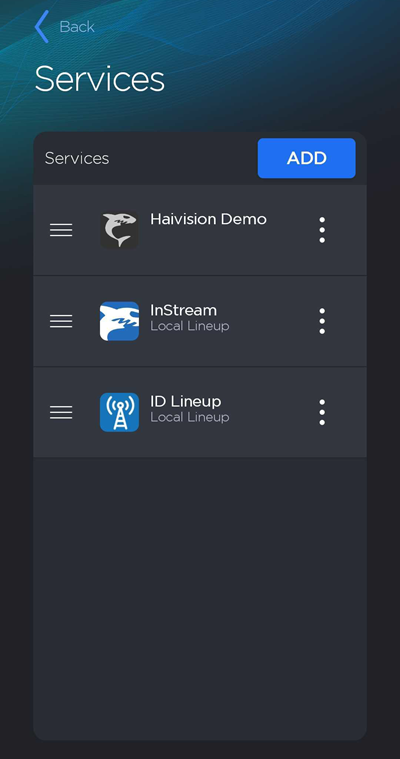
Tap the Add Channel button.
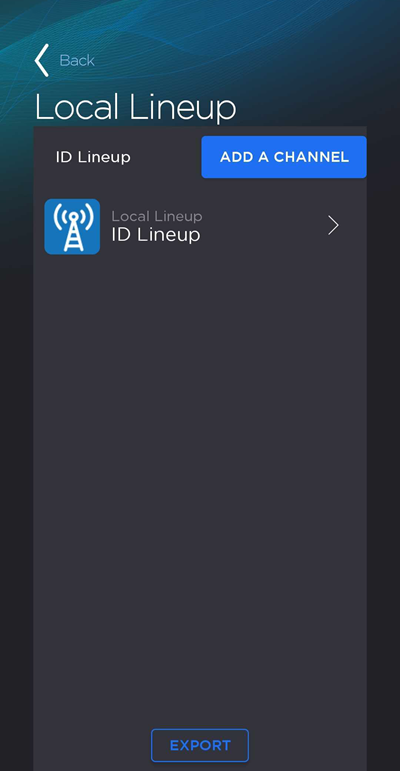
On the Add Channel screen, enter a Channel Nickname and, optionally, a Description.
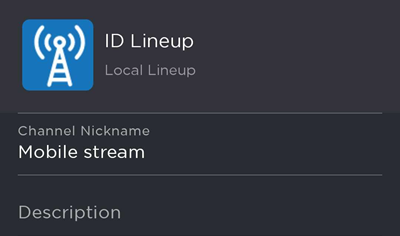
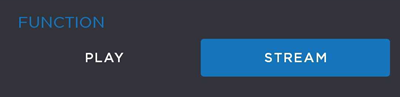
Set the channel's function to Stream.
Configure the video capture settings:
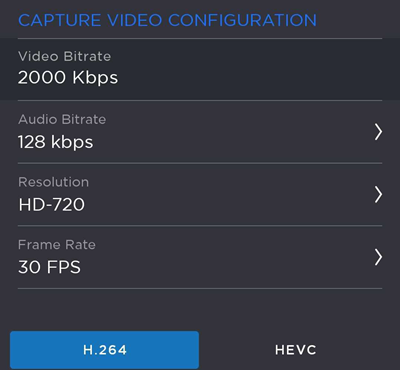
Enter a Video Bitrate value in Kbps.
Select an Audio Bitrate value. Values range from 64 Kbps to 256 Kbps.
Select a Resolution. Values include SD, HD-720, HD-1080, and UHD.
Select a Frame Rate. Values range from 15 FPS to 60 FPS.
Select a Codec: H.264 or HEVC.
Set the Protocol to SRT and select the Mode (Caller, Listener, or Rendezvous).
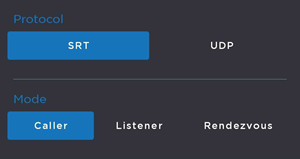
Configure stream properties:
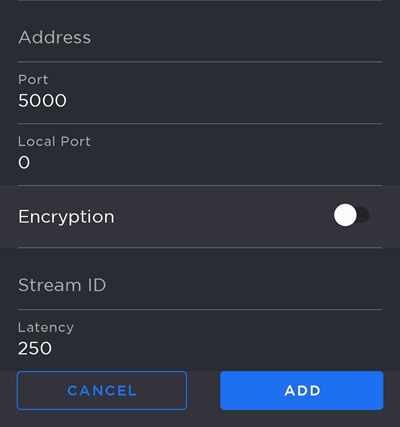
(Caller or Rendezvous only) Enter the destination Address.
Specify the Port number.
(Caller or Rendezvous only) Specify the Local Port number. A value of 0 auto-assigns the local port.
(Optional) Toggle Encryption on and enter a Passphrase. Users tuning in to the stream will need to enter this passphrase to view it.
Set the Latency value.
When finished making changes, tap the Add button.
Return to the Services screen.
Locate the newly-created channel in your Local Lineup.
Tap the channel. The Standalone Camera View opens.