
Setting Up a Makito Source Stream
The following example of setting up a test stream requires that you have a Makito X4 Encoder with an active video input. You need to configure one of the Makito X4 internal encoders based on your video source, and then configure an output stream for that encoder.

Tip
As you set up the test stream, you may wish to refer to the Makito X4 User's Guide, available from the Haivision InfoCenter.

Important
The IP address of your computer must be in the same subnet.
If you have not already done so, power up the Makito X4 Encoder.
Open a Web browser to the IP Address for the Makito X4 and log in.
The Web interface opens to the Outputs List View.Click Streaming in the sidebar and the Video Encoders tab to configure the video encoders.
On the Video Encoders list, click an encoder to open the settings pane.
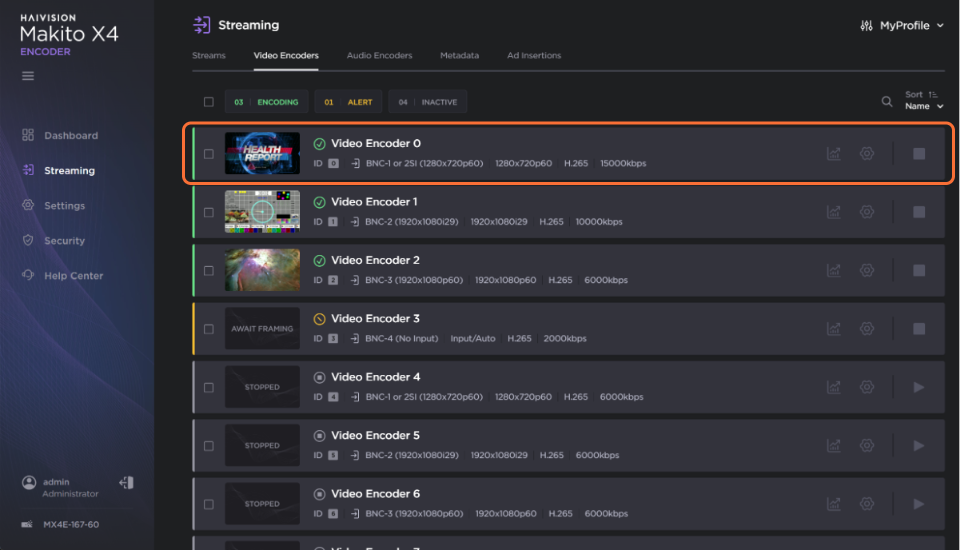
The Video Encoder Detail View opens, displaying the settings for the selected video encoder.
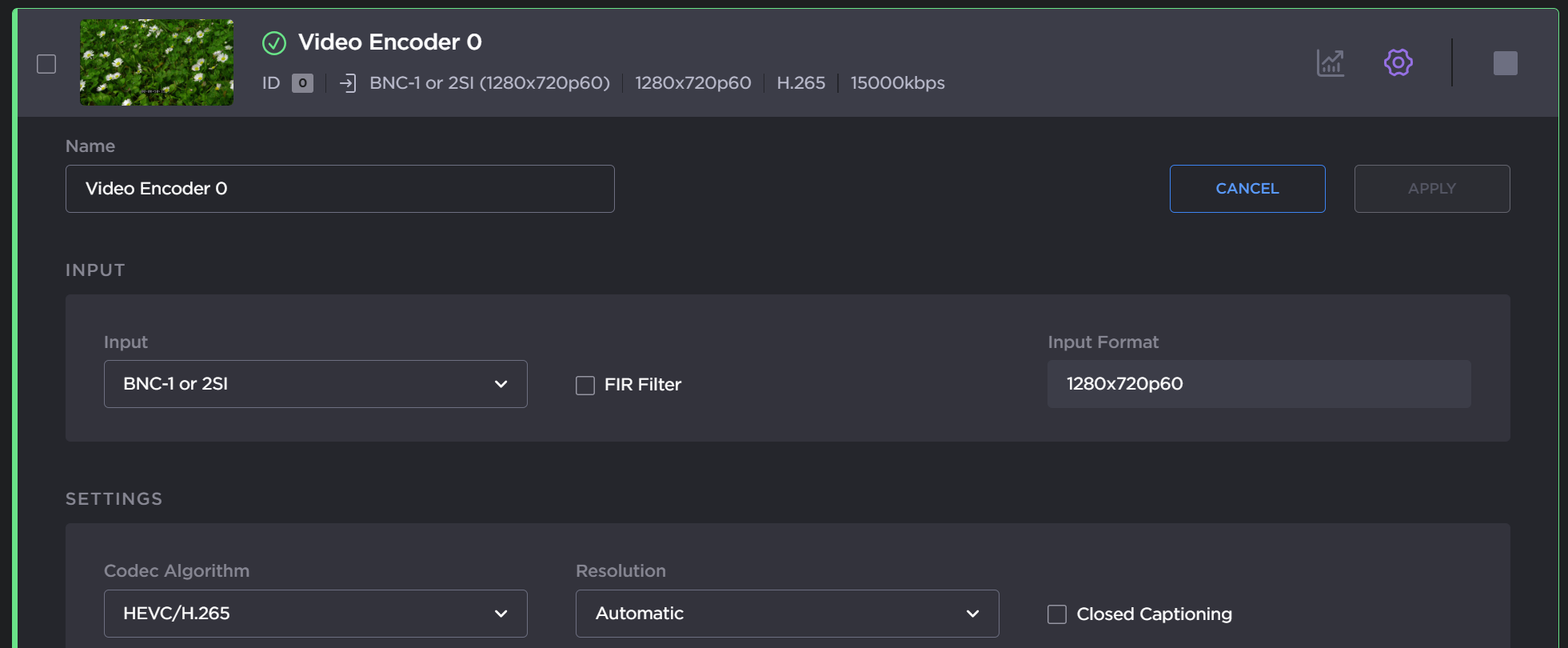
Select or enter the new values in the appropriate fields.
Click the Apply button.
Ensure the Encoder is running by clicking the
 button in the encoder’s listing if it appears.
Click the Streams tab to set up streaming.
Click the Add Stream button.
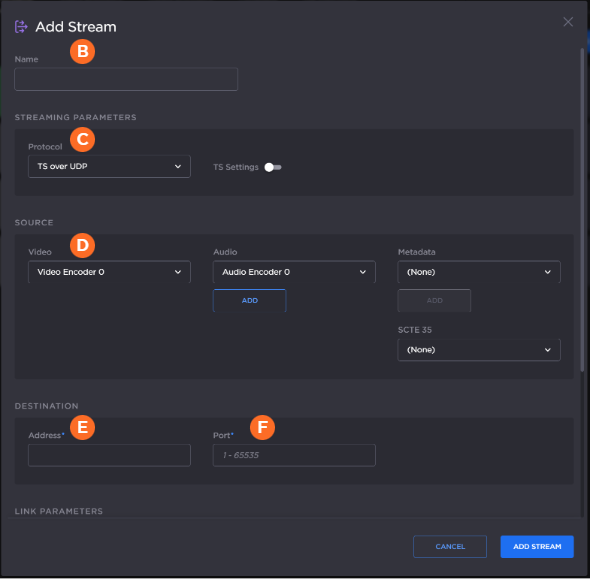
In the Add Stream dialog:
Enter a
 Name for the stream.
Select
 TS over UDP for the protocol dropdown.
Select the
 Video Encoder you edited in Steps #4-6.
Enter the
 IP Address of the Media Gateway/SRT Gateway, and specify a
  port number. (Remember this port number for a future step inCreating a Route.)
Click the Add Stream button.
To apply your changes and start streaming, click the Apply button. The new stream appears in the list of output streams.

For more details, refer to the Makito X4 User's Guide.