Starting a Live
To start the Live:
From the Home menu, tap
 . The video preview appears on screen and the live profile selected is reminded. When tapping
  or
or  , the Live menu provides some additional information.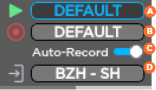
 Selected Live Profile
 Selected Record Profile
 Auto-record is enabled or not (OFF/ON)
 The Selected Destination Profile
You can modify these settings before starting the Live action.
To select another Live profile:
Tap the
 field.
Tap another Live profile.
To select another Record profile:
Tap the
 field.
Tap another Record profile.
To modify the Auto-Record mode:
Tap the toggle button to enable or disable Auto-Record.

Note
Simultaneous Live and Record in H.264 1080p50/59.94/60 is not supported.
To select another Destination profile:
Tap the
 field.
Tap a different Destination profile.
Tap
 and to start the Live. The video preview appears on screen.
 Audio Bars indicating Audio Levels Record Indicator Live Indicator Live Duration
Tap
 to display information about the Live action.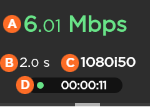
Network Bitrate End-to-End Latency configured in the Live Profile or modified remotely from StreamHub interface Source Standard
 Live Duration
Note
Refer to the StreamHub User Guide to set another delay during Live operation.
In case of a live and simultaneous Record, a different screen appears:
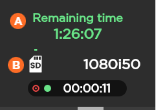
 Remaining recording time possible on SD card.
 Space used on SD card
To stop the Live:
Tap
and .Tap
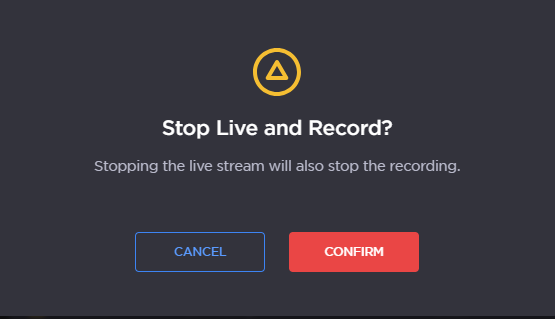
 > STOP LIVE.
To stop the Record:
Tap
 and
and  .
.Tap
 > STOP RECORD.
To start the Live:
On the Dashboard, in the Streams section, click the
 icon to check that the unit settings are configured and selected as required.
Note
If you enabled the Auto-record option, the video file is automatically recorded during the live.
Click the Save button.
Click the
 icon to start the Live.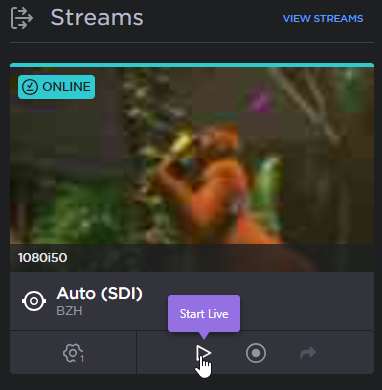
Start Live
To stop the Live:
Click the
 icon.
icon.Click the Confirm button to confirm stopping the video transmission.