
Scanning for a Wireless Network
Unit Panel
From the Home menu, tap
 > WiFi > Mode > Client.
Tap
 to scroll down and tap
  to scan surrounding networks.
Tap
 or
or  to select a network.
Tap the network name to select it.
Enter the password and tap
 to confirm.
Tap
 .
.
Web Interface
On the Dashboard in the Networks section, click the
 icon in the Wi-Fi entry.
If the Mode section, if not selected, select Client.
Click the Scan button.
Surrounded networks are scanned and listed.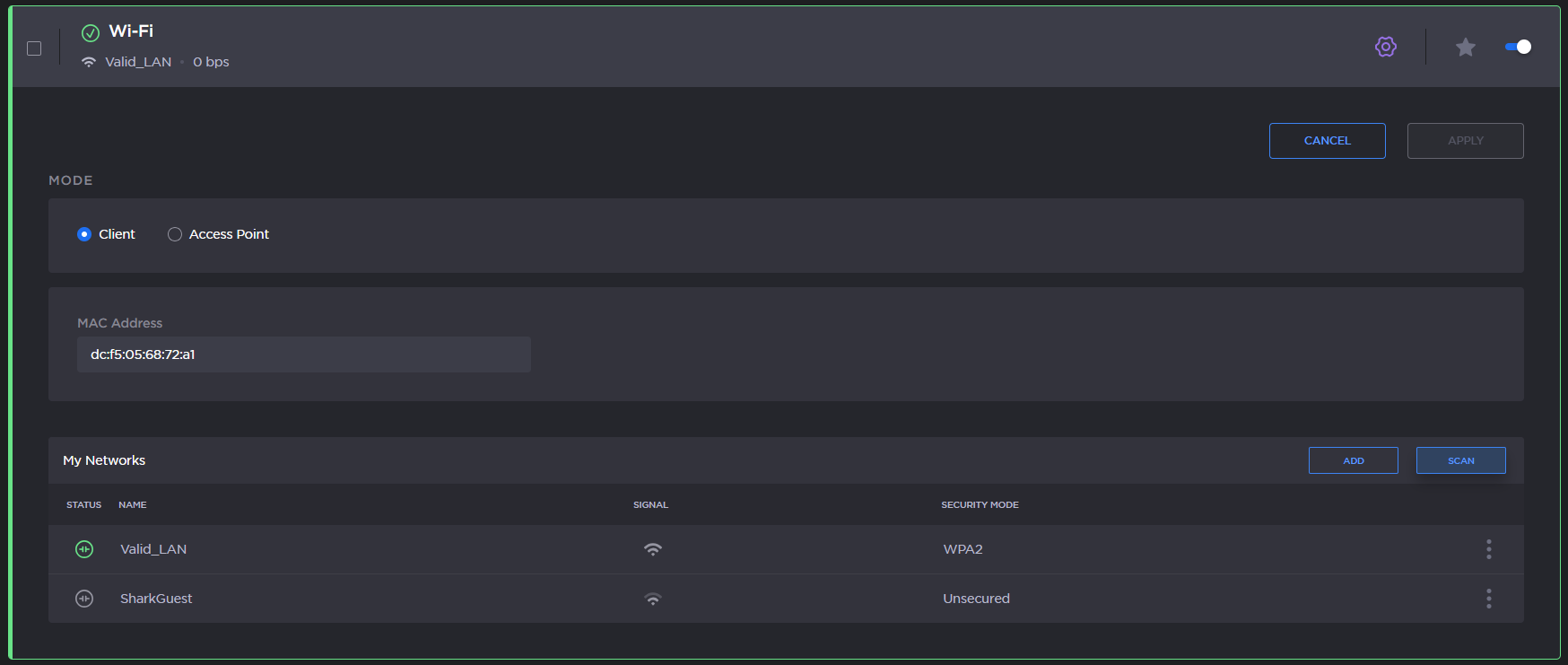
Select the desired network among the list by clicking the Join button.
Enter the password and click the Join button.
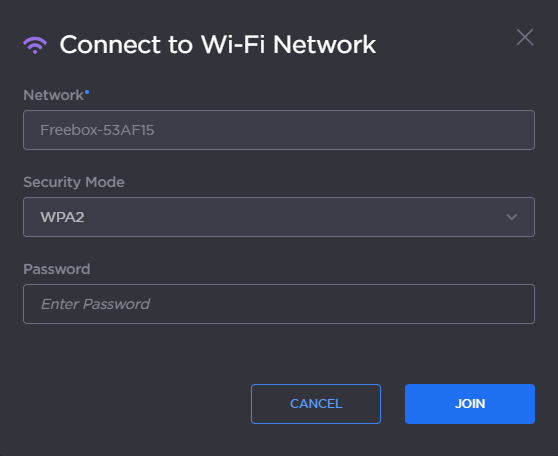
Wifi Password
After successfully joining the network, the connection status appears in the Wi-Fi network entry.

Wifi Connected