
Manually Adding a Network
To manually add a network from the Unit Panel or from the Web Interface, see the sections below.
Unit Panel
From the Home menu, tap
 > WiFi > Mode > Client >
  .
.
Tap
 to add a new network.
Enter a Network name.
Select a Security Mode, and enter the information as required for the selected mode (Username, Password, Security Certificate(s) / Private key).
Tap
 to connect the network.
Tap
 to save the new network.
Web Interface
On the Dashboard in the Networks section, click the
 icon in the Wi-Fi entry.
In the Mode section, if not selected, select Client.
Click the Add button.
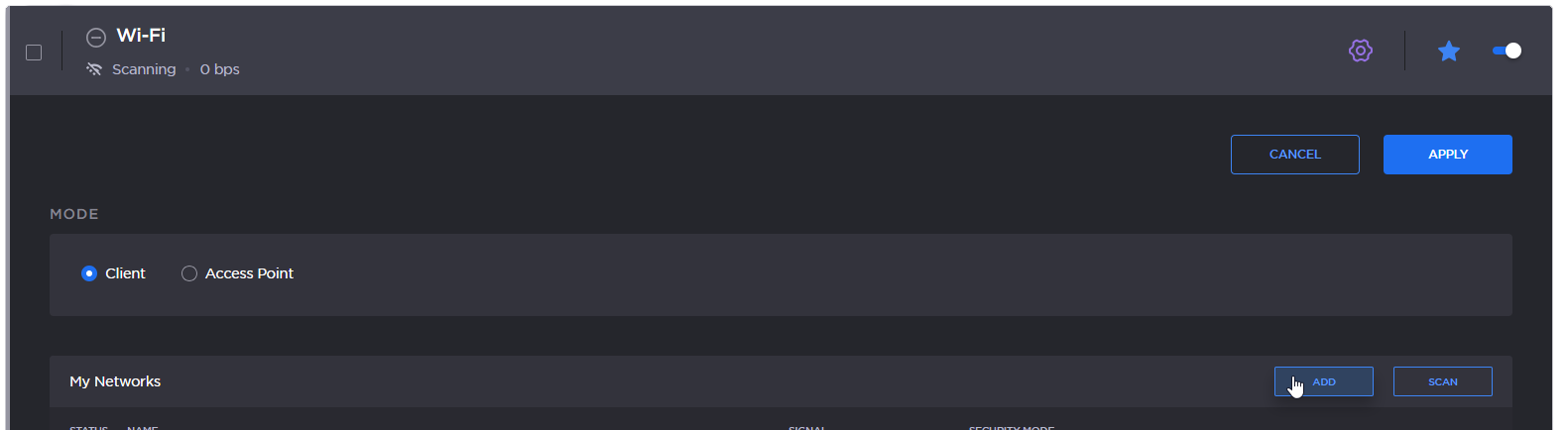
Wifi Add button
Enter the Network name.
Select a Security Mode and enter the information as required for the selected mode (Username / Password / Security Certificate(s) / Private key).
Click the Join button.
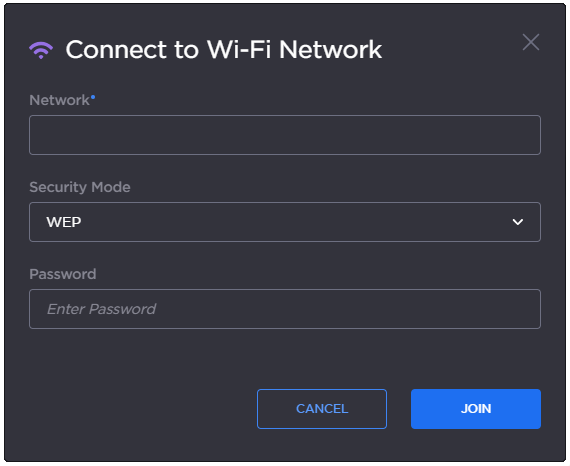
Wifi network details
After successfully joining the network, the connection status appears in the Wi-Fi network entry.

WiFi connected