
Configuring a BGAN Profile
To configure a BGAN profile from the Unit panel or Web Interface, see the tabs below.
Unit Panel
From the Home menu, tap
 >
>  >
>  .
.Fill in the settings:
Profile Name
Model: Hughes 9201, Hughes 9211, or Explorer 710
APN
Enter a Username and a Password (if required).
Select a Mode: X-Stream, Background, HDR Full-Asymmetric, or HDR Full-Symmetric.
Tap
 to save the BGAN profile.
Web Interface
In the sidebar, click Network > Satellite > BGAN.
Click the Add Profile button.
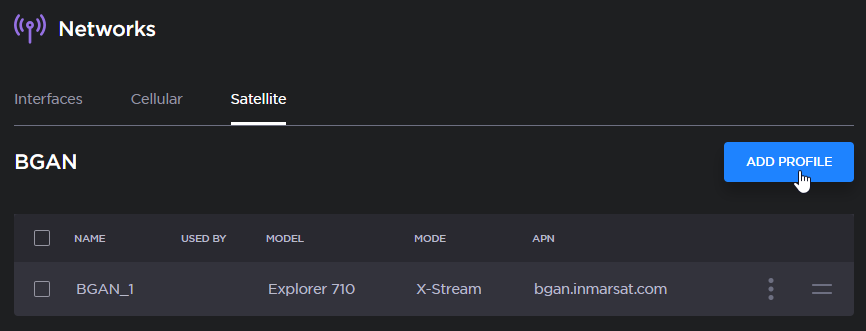
Add BGAN Profile
Fill in the settings: Profile Name, Model, and APN.
Enter a Username and a Password, if required.
Choose a Mode in the dropdown list.
Click the Add button.
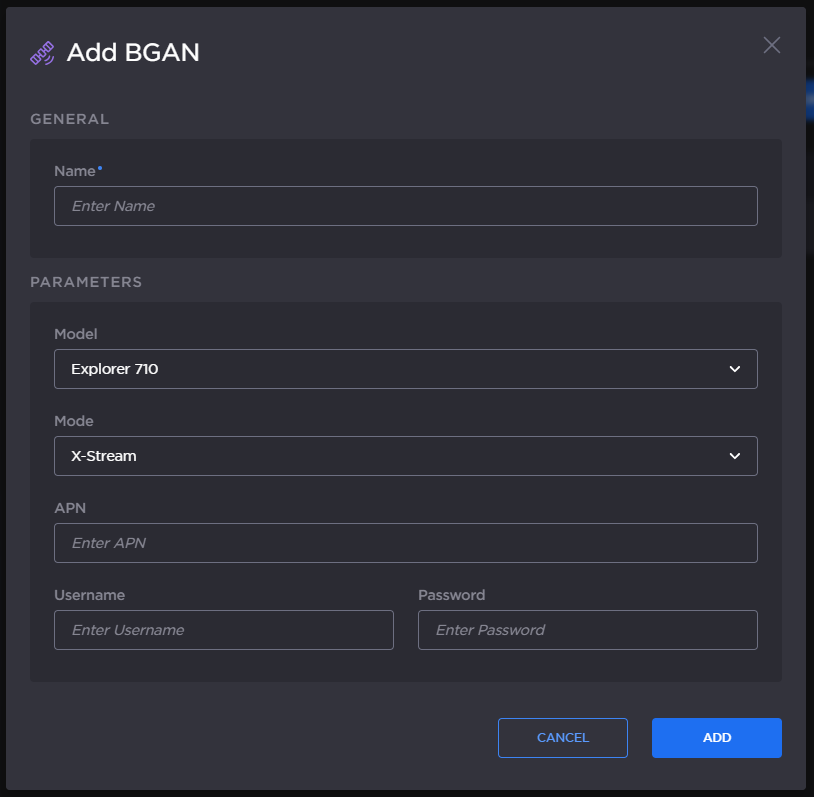
The new BGAN profile is added to the Networks list.