
Adding a Record Profile
To add a Record Profile from the Unit Panel or from the Web Interface, see the sections below.
Unit Panel
From the Home menu, click on
 >
>  .
.Tap
 .
.Tap the Profile Name field.
Use the keyboard to enter the new profile name.
Tap
 to confirm.
Tap the File Format field and select Transport Stream or MP4 format.
Tap
 to configure the Record Profile settings:
Video Settings (Encoder Type, Bitrate). When recording, the video is encoded in CBR mode using the source resolution.
Audio Settings (Encoder Type, Channel Layout, Bitrate)
Tap
 to save the new Record Profile settings.
Web Interface
In the sidebar, click Streaming > Record.
Click the Add Profile button. The Add Record Profile dialog opens:
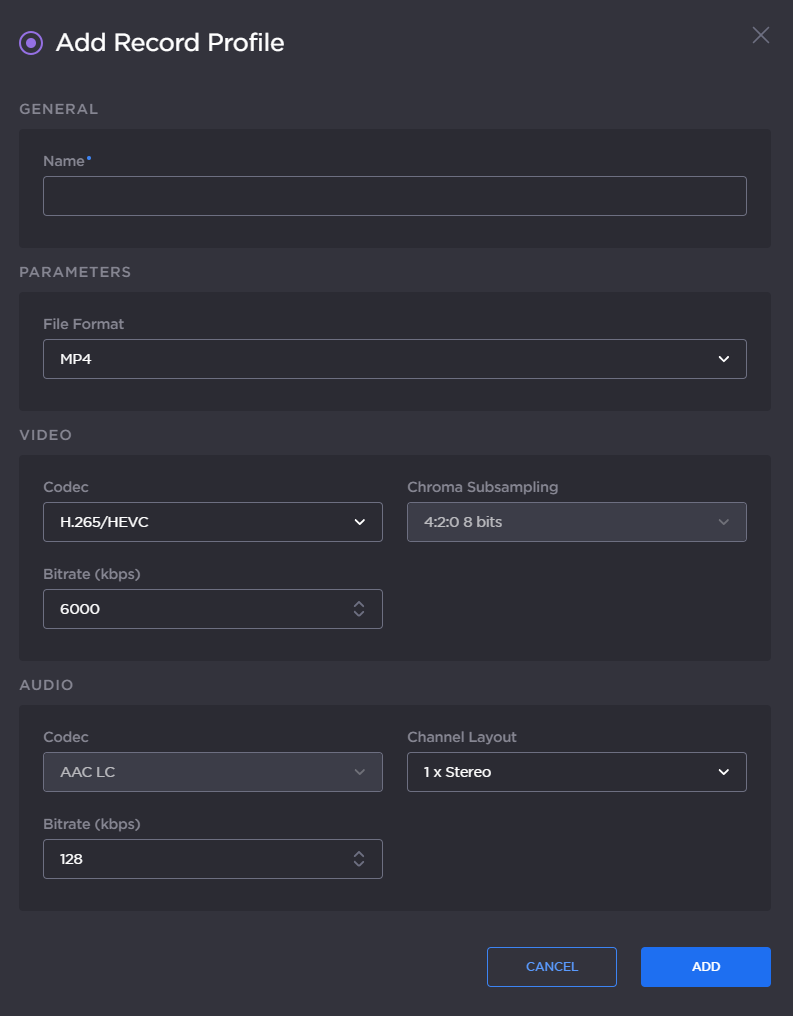
Add Record Profile
Enter a profile name in the Profile Name field.
Choose the File Format (Transport Stream or MP4).
Choose the video Encoder Type.
Set the video Bitrate.
Select the audio Channel Layout.
Set the total audio Bitrate.
Click the Add button.