Pair CNN Field Transmitter with Hub 360 (Front Panel UI)
This page explains how CNN Field Transmitter units are named using a specific pattern and paired with Hub 360 using a pairing code. The device’s name and date/time are set through the front panel UI, and the Hub 360 profile is created and paired with the provided code.

Naming Convention
CNN field kits are named with the following pattern:
ABC-D-12345
ABC = Location code (example: LON = London)
D = Unique identifier for that location, usually a number
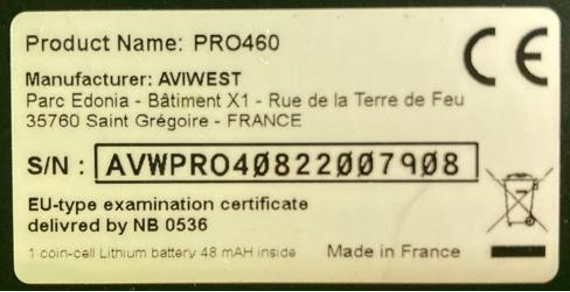
12345 = The last five digits of the Haivision serial number.
This is NOT the WBD asset tag number. The Haivision serial number starts with “AVW” and can be found on a white label on the side of the unit. In the example at right, “07908” would form part of the field kit name.
Set Name and Date/Time
To set the name of the unit and the date/time using the front panel, do the following:
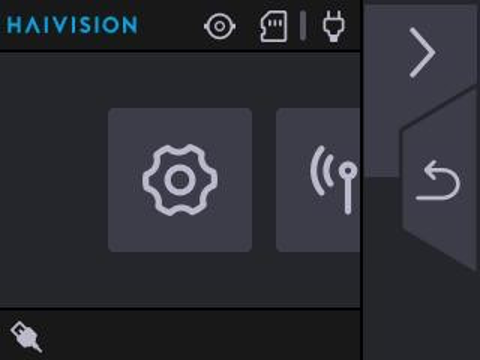
1. On the main menu, navigate to Settings (“cog” icon).

Navigation tips:
On the PRO or RACK units, use the navigation buttons on the touchscreen.
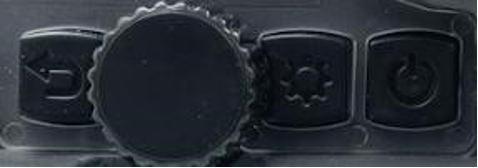
On AIR units, turn the selection wheel to scroll through options. Press the wheel to select. Press the back button (left of wheel) to back out of a menu.
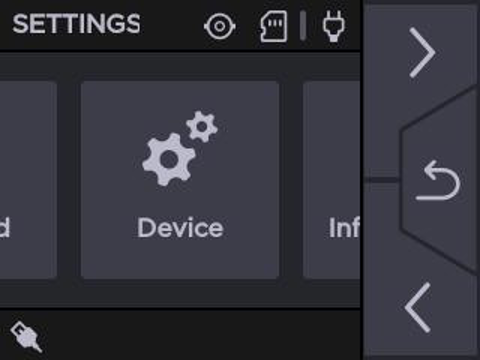
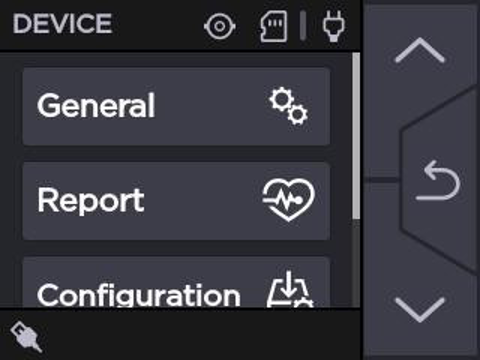
2. Navigate to Device.
3. Select General.
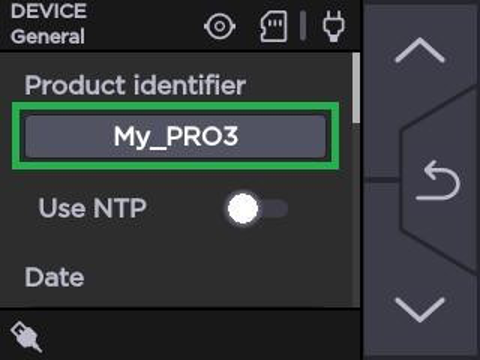
4. Select the blank under Product identifier.
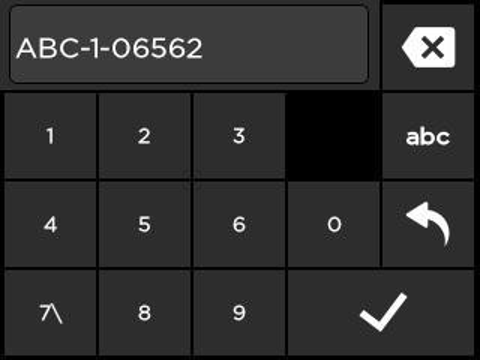
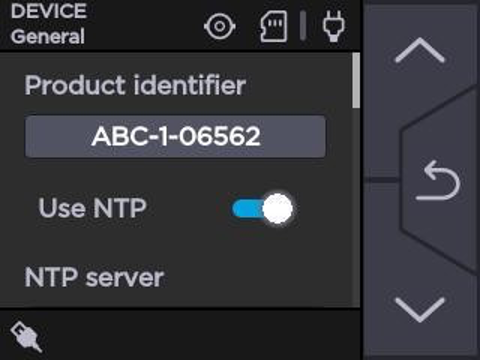
5. Use the alphanumeric buttons to fill in the correct name for the unit. Click the check icon  when done.
6. Click the Use NTP toggle to the On position, and then click the Back button.
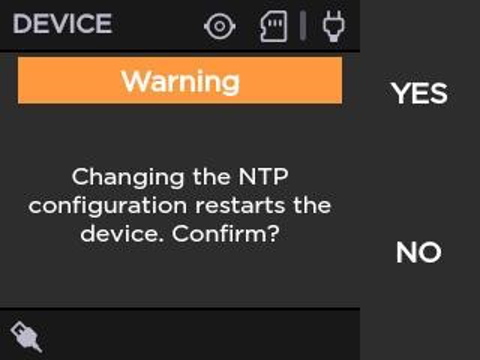
7. Click Yes and allow the unit to reboot.
TIP: You can connect a USB keyboard to make this easier.
TIP: If no NTP server is specified below the toggle, you can use pool.ntp.org
TIP: On AIR units, the back button is to the left of the Selection wheel.
Pair with Hub 360
To pair the unit with CNN’s Hub 360 subscription, do the following:
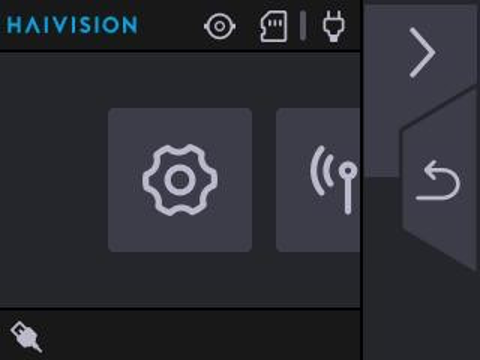
1. On the main menu, navigate to Settings (“cog” icon).
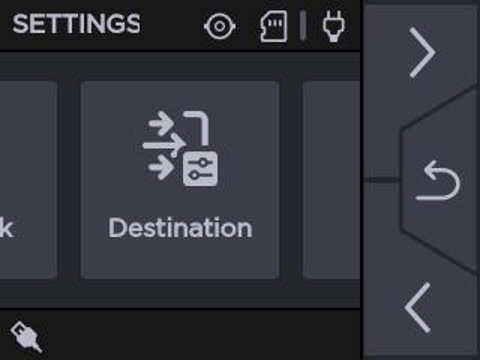
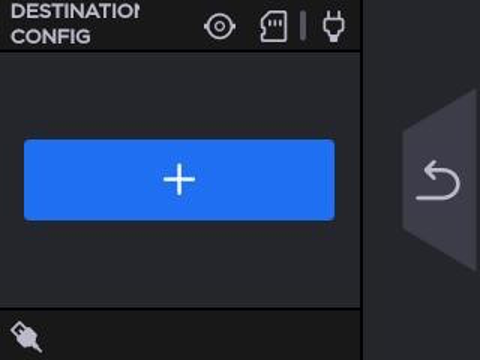
2. Navigate to and select Destination.
3. Click the + icon.
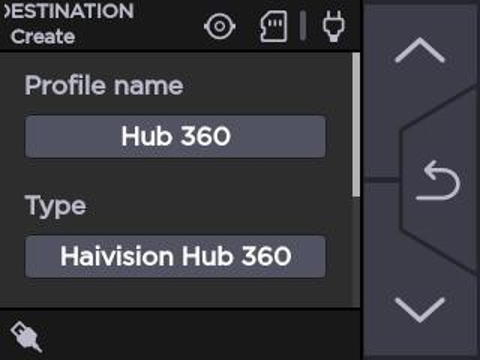
4. Change Profile name to “Hub 360”, and Type to “Haivision Hub 360”.
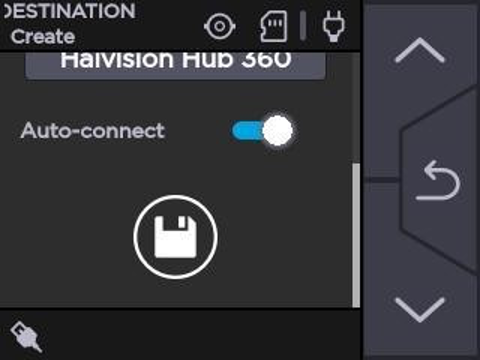
5. Leave Auto-connect enabled, and click the Save (diskette) icon.
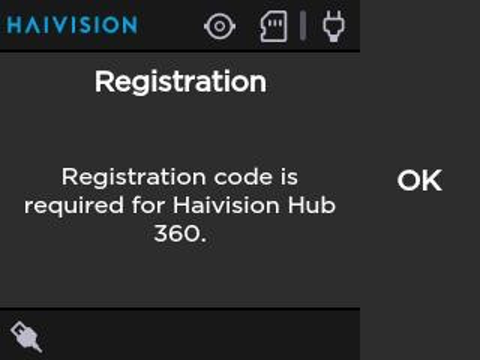
6. Click OK.
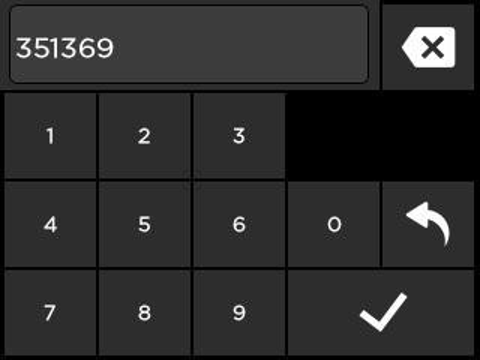
7. Enter the pairing code and click the “check” icon.
At the time of this writing you can use 351369. If that code is no longer valid, please contact your WBD CNN subscription admins.
The device should automatically pair at that point. This may take a few moments. When connected, you should see the “Link” (chain icon)  LED illuminate on the device’s front bezel.
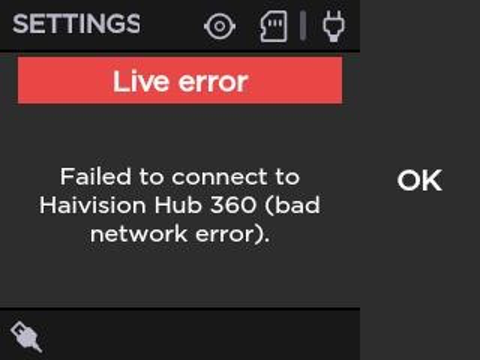
TIP: If you see a “Failed to connect…” error, click “OK” and check the following:
Make sure the device has an Internet connection (cell modems, Ethernet and/or WiFi).
Make sure the date and time is correctly set (under Settings > Device > General).