
Setting a Multi-View
The Multi-View can then be used as any other input, being sent directly to an SDI or NDI output. It can also be encoded in H.264 or HEVC before being sent to any available IP output.
Scroll down the INPUTS section to display the multi-view thumbnail.
Click on
 , then on
  .
.Define a name for the multi-view.
Fill in the fields and configure settings as required, including the video output standard and audio channel layout.

Note
You can click  to get more information about settings required.
Click on Save.
Click on
 to enable this multi-view.
Click on
 to configure the multi-view.
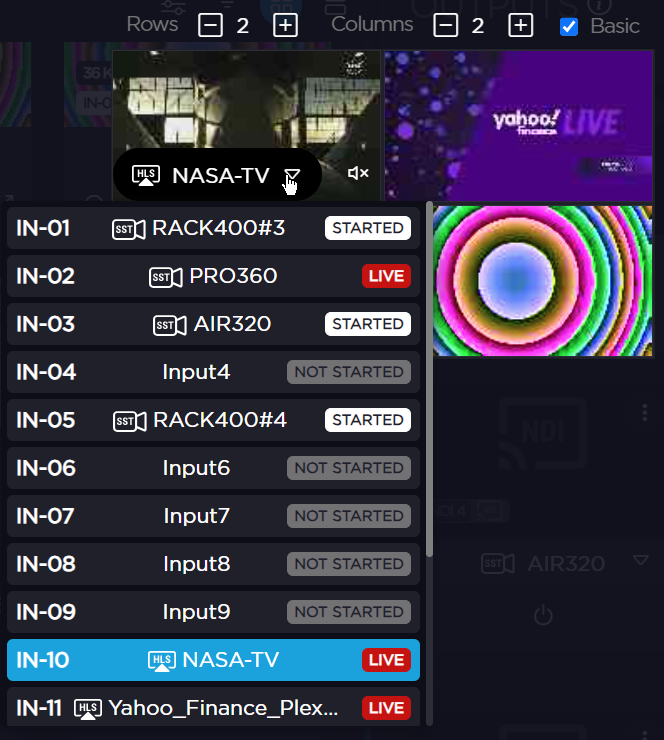
Set the number of rows and columns you wish.
Note
You can hide overlay information by ticking the Basic option. Overlay information includes audio bars and input names.
You can click
 or
or  to enable or disable the audio (only one input audio can be enabled for the whole mosaic).
For each block in the mosaic, define the input that is assigned to it.
Note
The audio stream from only one input can be transmitted with the mosaic. This audio can be selected using the speaker button .