
Monitoring the Network Performance/Data Transmission
The quality of the output videos depends on the quality of the transmission. Your StreamHub allows you to monitor the performance of each transmission link, control the latency, and other transmission settings.
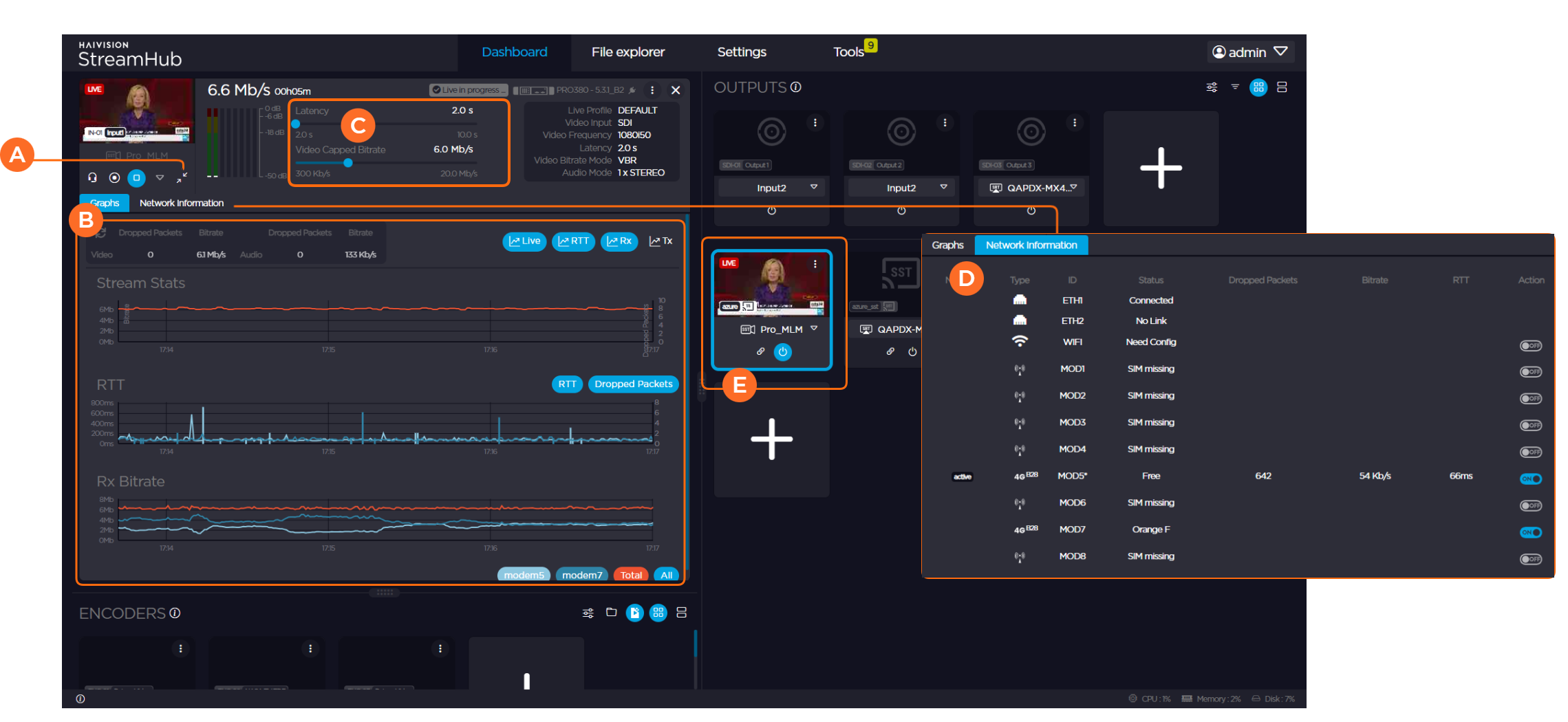
To display detailed information about a transmission in progress, click on  .
.
| The |
| Under the Graph tab, a real-time overview of the transmission giving:
|
| Control sliders to adjust latency and capped video bitrate. Line graph showing total network bitrate and network bitrate on each active network interface. |
| Under the Network Information panel, network information about each modem. |
| Highlighted thumbnails indicate the outputs connected to the input. |


Note
Detailed network metrics are provided when performing a Live transmission from a field unit. When receiving other IP input streams (RTMP, RTSP, HLS, etc.), only a stream graph is available.
The "*" sign beside a modem indicates that the modem of a field unit is configured specifically to limit connection capabilities to some frequency bands and/or the 3G/4G mode was activated.
For SRT inputs, Control sliders (C) and Network Information (D) are not available.