
Configuring Audio Encoders
From the Audio Encoders tab, you can configure up to 32 independent audio encoders to apply to streams. You can start, stop, mute, and unmute each audio encoder, as well as display settings and statistics for the encoder.

Note
It is recommended not to exceed 100 channels when configuring multiple audio encoders. Encoding more than 100 audio channels may compromise system performance.
On systems licensed for SMPTE ST 2110 input with the Personality set to ST 2110, the available inputs for audio encoders are ST 2110 essences. For more information, see Configuring ST 2110 Inputs.
Audio Encoders List View
To open the Audio Encoders List View:
On the Streaming page, click Audio Encoders on the sidebar.
The Audio Encoders List View opens.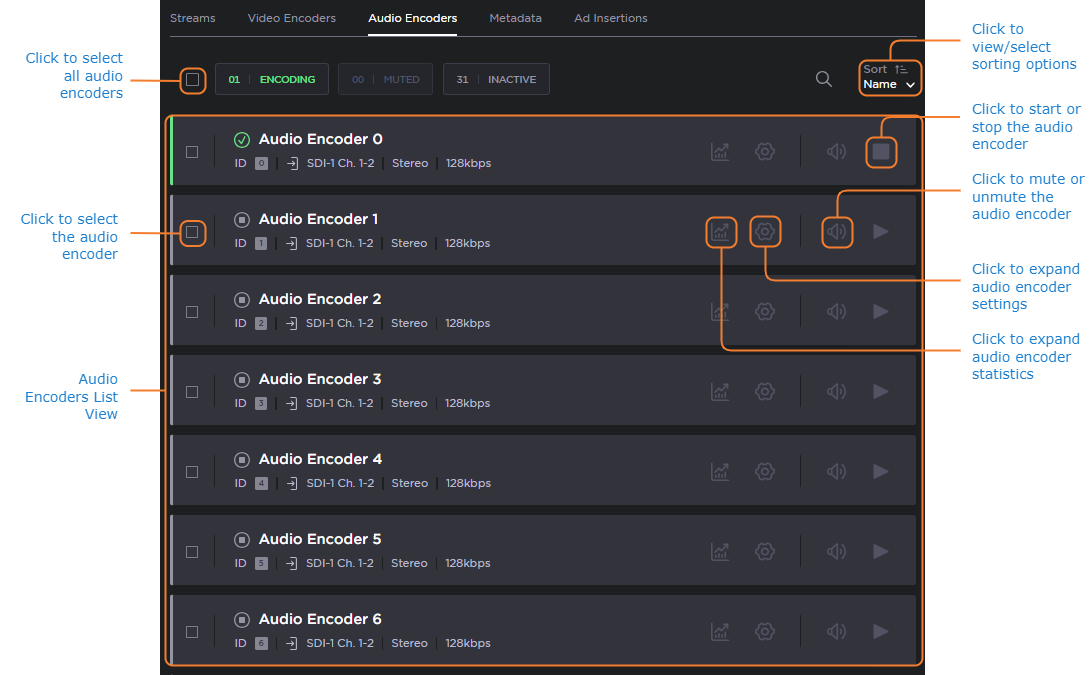
The Audio Encoders List View displays the Status, Name, Input, Channel Mode, Language, and Bitrate for each audio encoder.From here, you can perform the following tasks:
To view details or modify the audio settings for an encoder, click the Settings icon
 in the audio encoder panel to open the Audio Encoder Detail View. See Configuring Audio Encoder Settings and Audio Encoder Settings.
 To view the Audio Encoder statistics, click the Statistics icon
 in the audio encoder panel. From here, click the Reset button to reset the statistics. See Audio Encoder Statistics.
To change the status for an audio encoder input, click the the Mute/Unmute icon
 /
/ or the Start/Stop icon
  /
/ (as applicable).
To change the status for multiple audio encoder inputs, click the checkboxes on each audio encoder panel you wish to modify and click the Start, Stop, Mute, or Unmute buttons (as applicable) that appear above the List View.
Change the Audio Encoders sort order by clicking the Sort dropdown menu.

Tip
To expand or collapse the statistics or settings details for all audio encoders at one time, hold the shift key and click the Statistics icon or Settings icon on any audio encoder.
To apply your changes, click Apply.