
Set Up Streaming
To configure an output stream:
Select the Streams tab to access the Streams List View.
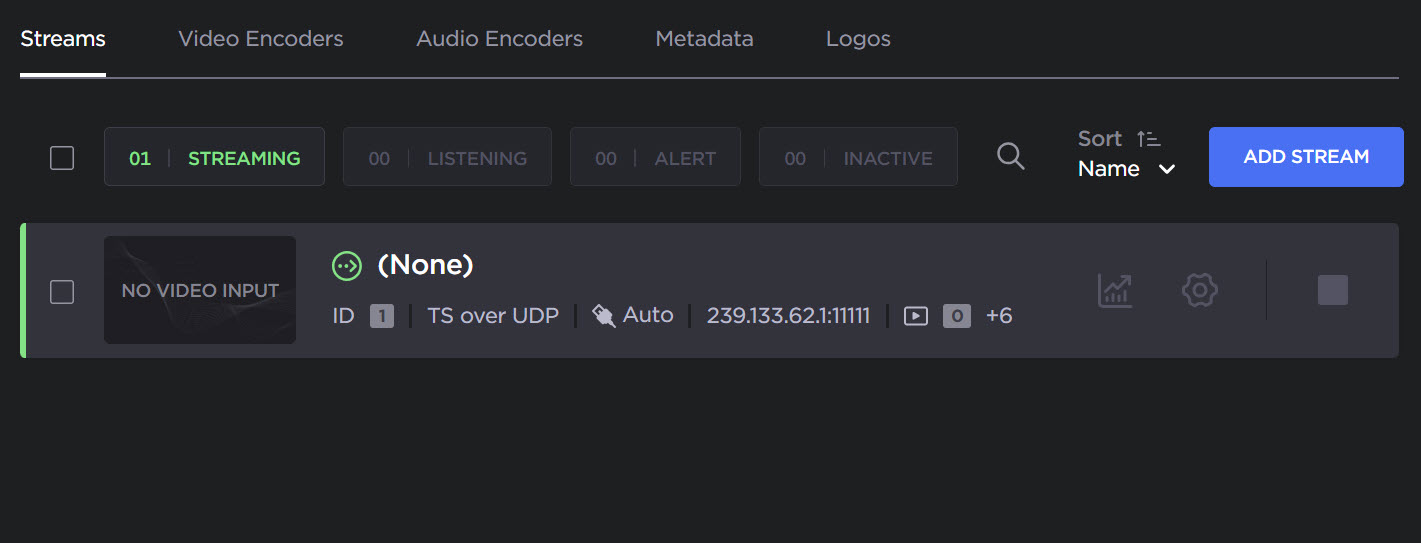
To add an output stream, click the Add Stream button.
The Add Stream panel opens.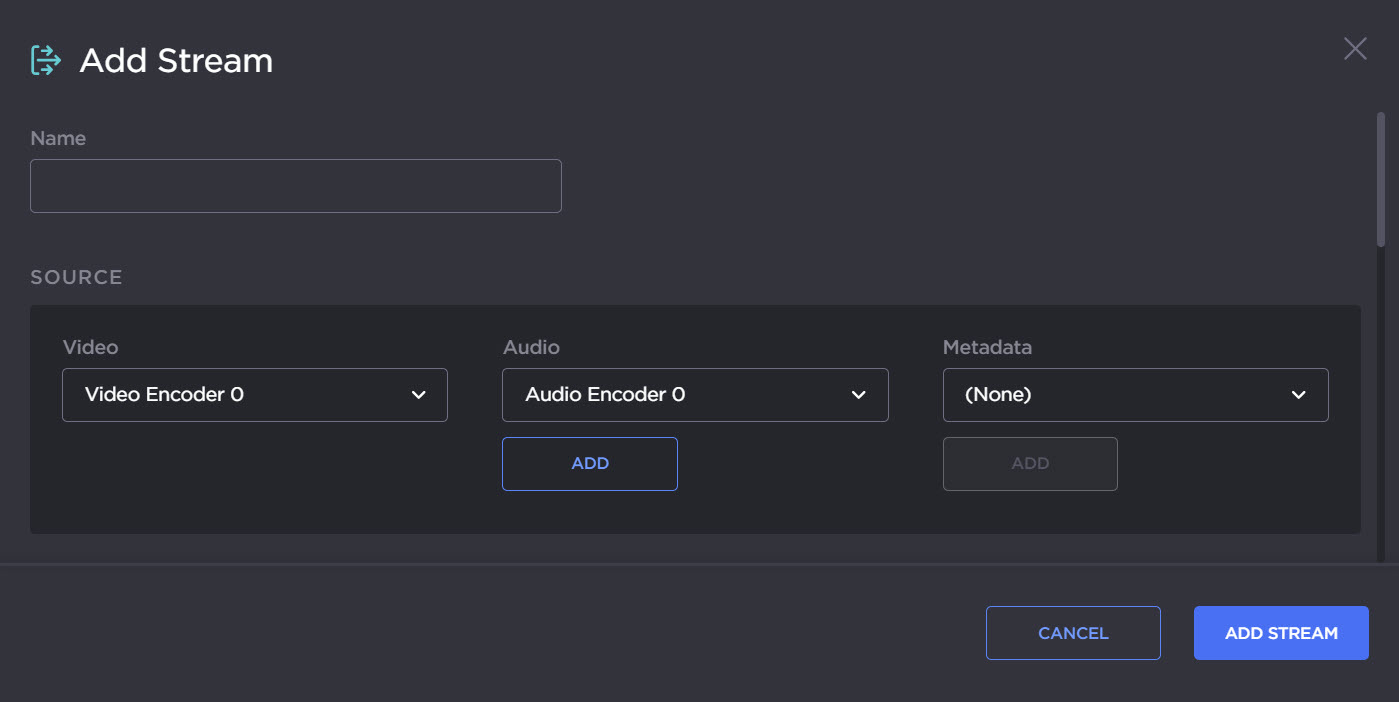
Type a Name for the stream, and under Source, select the video and audio encoders you started in the previous steps (above).
To add metadata to the stream, select the Metadata source, and (optionally) select the encapsulation type (Data Carriage).
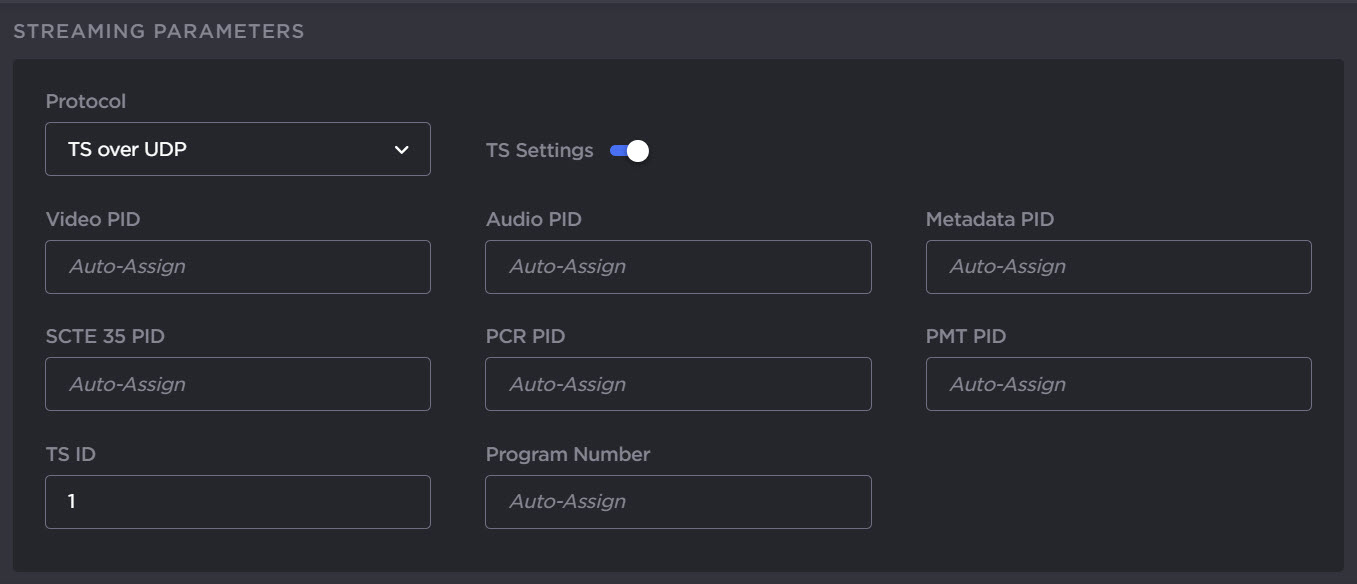
Under Streaming Parameters, select the Protocol. Optionally, toggle the TS Settings on and configure the additional parameters.
Under Destination, type in a valid multicast Address (e.g.,
239.192.2.3) and Port number (e.g.,2000).

Note
The Multicast address range is from 224.0.0.0 to 239.255.255.255. Multicast addresses from 224.0.0.0 to 224.0.0.255 are reserved for multicast maintenance protocols and should not be used by streaming sessions. We recommend that you use a multicast address from the Organization-Local scope (239.192.0.0/14).

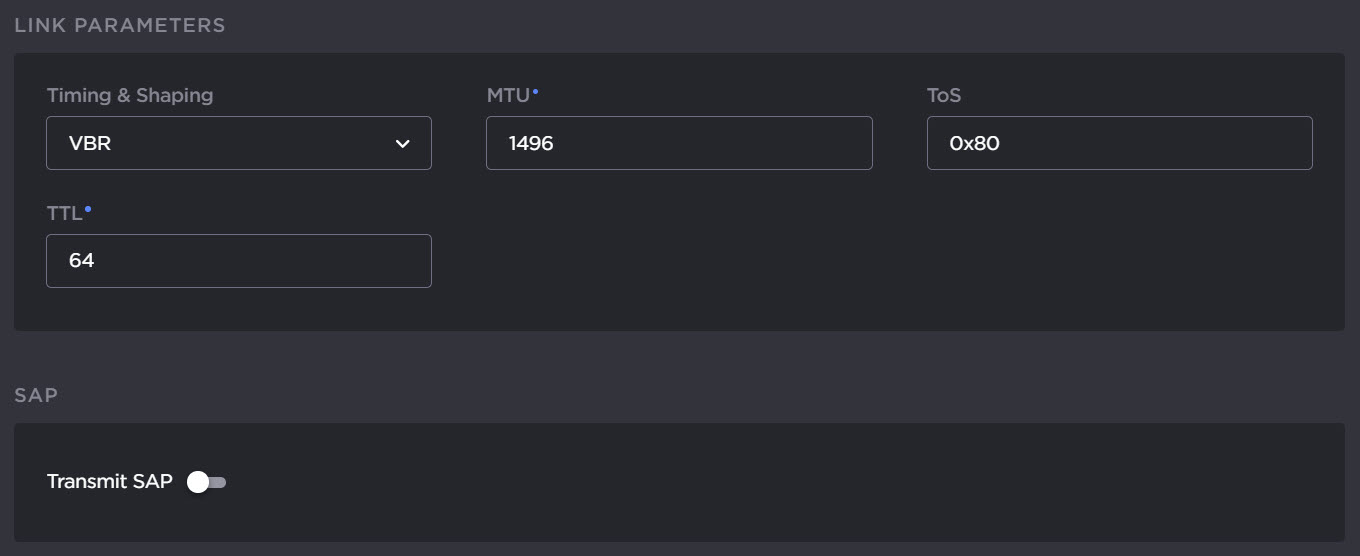
When applicable, configure the Link Parameters, and toggle Transmit SAP on to configure the SAP parameters.
To apply your changes and start streaming, click Add Stream.
Note
The changes will take effect immediately but will be lost after a reboot. For information on saving configuration settings, refer to (1.1) Saving and Loading Presets in the User’s Guide.
Related Topics