
Configuring Streaming
From the Streams tab, you can create multiple output streams using the defined video encoders, audio encoders, metadata sources (if applicable), and ad insertions (if applicable). Each output stream is configured independently. For details see:
Streams List View
To open the Streams List View:
Click Streaming on the sidebar, and select the Streams tab.
The Streams page opens, displaying the list of defined streams for the encoder.
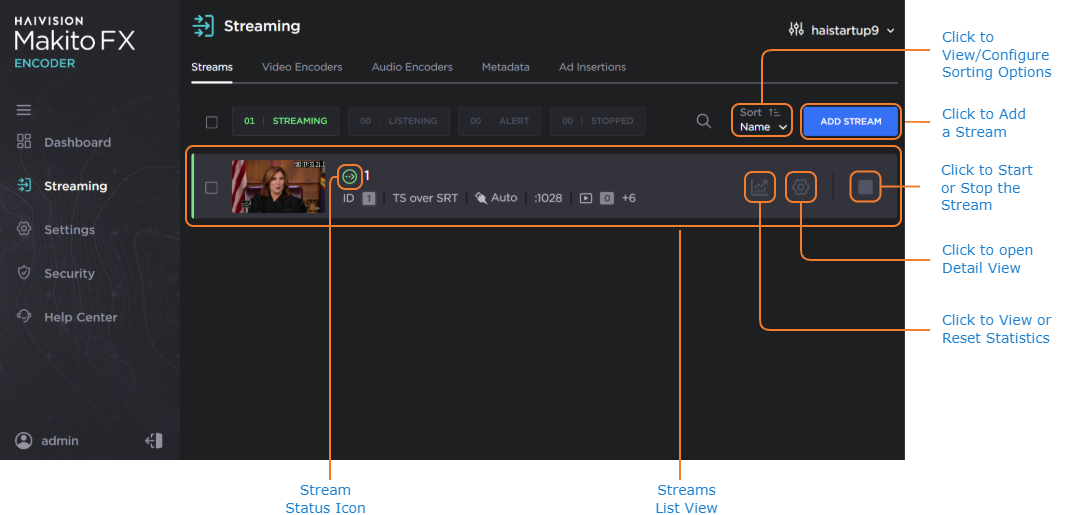
The Streams List View displays the Status, Stream Name, Protocol, Destination (IP Address and Port), and Selected Content (Video/Audio Encoders and Metadata source) for each stream.
From here, you can perform the following tasks:
To create a stream, click the Add Stream button.
To view details or modify the settings for a stream, click the Settings icon
 in the Stream panel to expand the Stream Detail View. From here you can view or modify the:
Source settings
Streaming Parameters
Destination
Link Parameters
SAP
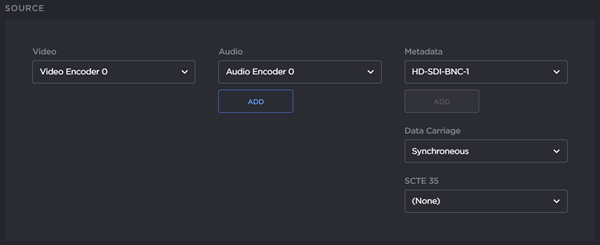
From the Stream Detail View, you can also view the video or audio encoder, or metadata source for a stream. You can view and modify these configurations under Source.
The Stream Status is color coded, and the Stream State is indicated by the State icon.
The possible Stream Statuses are:
Status | Color | State | Icon | Description |
|---|---|---|---|---|
ACTIVE | Green | STREAMING |
| The stream is active and running. |
STOPPED | Gray | STOPPED |
| The stream is stopped. |
LISTENING | Blue | LISTENING |
| The stream is listening for a connection. |
ALERT | Amber | CONNECTING |
| The stream is in the process of connecting. |
SECURING |
| Acquiring keys for protected content. | ||
RESOLVING |
| DNS resolution of the host name to IP address is in progress. | ||
SCRAMBLED |
| The stream is scrambled, i.e. the encoder is unable to decrypt the encrypted stream. | ||
Red | FAILED |
| An error has occurred, and caused the stream to fail. |


To change the status for an existing stream, click the check box to the far left of the Stream Panel and select either Start, Stop (as applicable), or Delete.
To view the stream statistics, click on the Statistics icon
 in the Stream Panel. From here, you can:
Click Reset to reset the stream statistics
(SRT streams only) Click Detailed Statistics to view the detailed stream statistics page
Click the Sort dropdown to sort the streams by Ascending or Descending order, and/or by ID, Name, Destination IP, Protocol, or Status.
To apply your changes, click Apply.