
Signing in to Your Server
Accessing the Web Interface
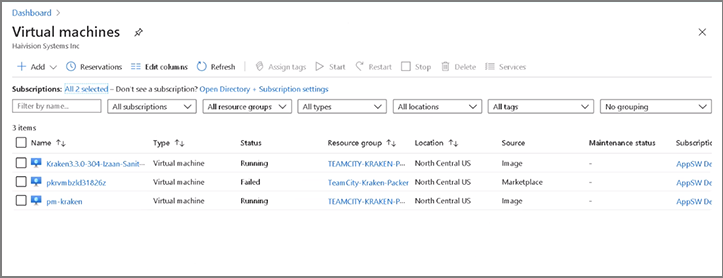
On the VM Machines page, click the link for the Kraken Azure instance to view the details for the VM:

Tip
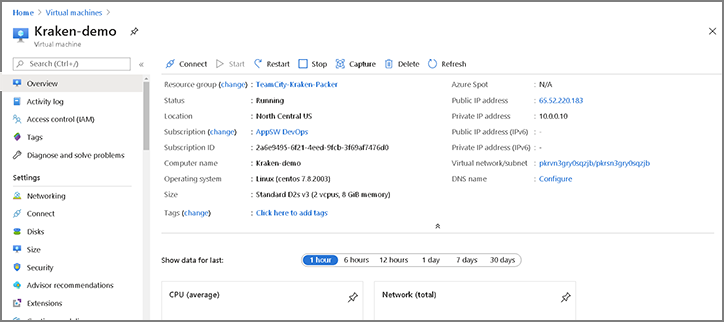
The Kraken Web Interface can be accessed with Kraken Azure VM’s Public IP address.
Click the Public IP address the link to open the Web Interface.
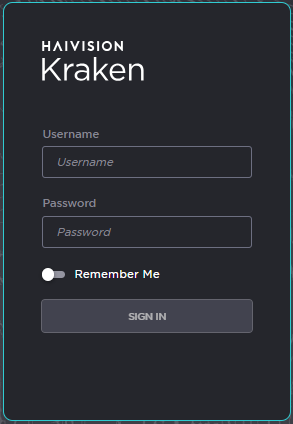
Sign in to the Web Interface using the default administrative user name and password (the default password is provided on the Important Notice postcard, available from the Haivision Support Portal).
A License Required modal appears. See Licensing Your Server to obtain a license.
Accessing the Server via SSH
You can log in to virtual server's Secure Shell (SSH) by using the key that was downloaded when the virtual server was created. See the step #8 in Setting Up Your Server.
The Console UI will not launch automatically in Kraken Cloud instances. If you lose/forget the password for the haiadmin account, follow the below procedure to reset the password.
In a terminal window, enter the following command:
ssh -i <private-key.pem> hvroot@<public-ip-address>
The shell appears, as in the following example.
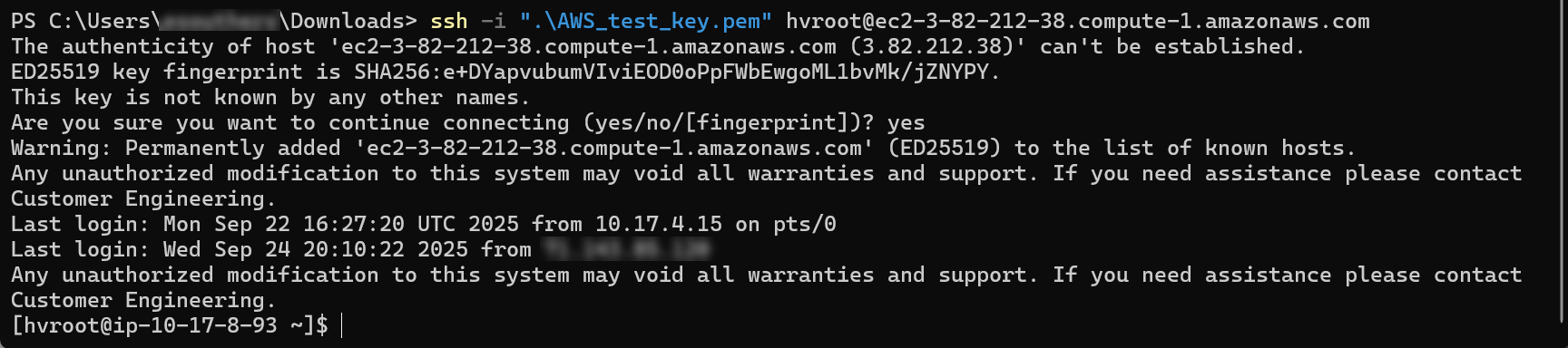
SSH Shell
From here, launch the Console UI by running:
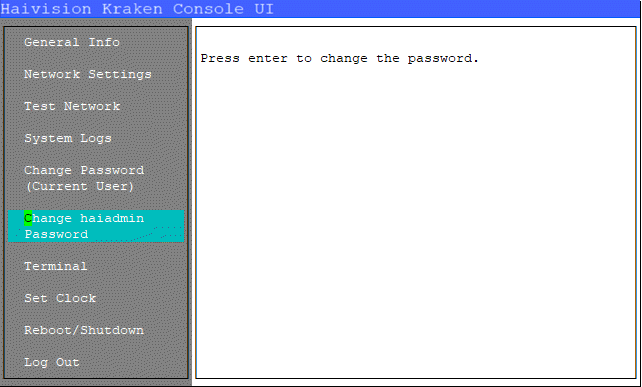
[hvroot@localhost ~]$ /opt/haivision/usr/bin/cui.pyThe Console UI appears. Select Change haiadmin Password from the side menu and enter a new password.

Note
Modifying any additional settings through the Console UI is not supported on cloud instances and should be avoided.
Log out of the Console UI and exit the SSH session.
The haiadmin user can now sign into the Kraken web interface with the new password you specified.