Access the Web Interface
Open a Web browser of your choice, such as Chrome, Firefox, Safari, or Microsoft Edge.
Type the IP address for the transcoder into the browser's address bar and press Enter.
The KX1 comes pre-configured with the following default settings:
IP Address | Subnet Mask | Gateway |
|---|---|---|
|
|
|

Note
To access the Web interface, your computer must be in the same IP Address range (subnet). You may have to temporarily change your computer’s IP Address to be in the same subnet as the transcoder. Only then will you be able to access the transcoder and change its IP address, and then afterwards change your computer's IP address back. For details, see Configuring Network Settings (in the Kraken User's Guide).

Warning
The KX1 does also support IPv6, but requires reconfiguration for IPv6-only networks. When enabling IPV6-only, ensure that you have CLI access via SSH before proceeding. This process will also remove any configured Processors, which will need to be reinstalled.
Once IPv4 is fully disabled, the webserver will be inaccessible until you perform the following commands on the CLI.
systemctl stop k3s

# Backup persistent storage before deleting
cp -r /assets/k3s/storage/pvc-* /assets/pvc-backup

rm -Rf /assets/k3s
rm -Rf /etc/rancher/k3s/k3s.yaml

# Edit /etc/rancher/k3s/config.yaml and set these fields as needed
#cluster-cidr: 2001:cafe:42::/56
#service-cidr: 2001:cafe:43::/112
#node-ip: fd00:10:65:135::e367

reboot

# Wait for webUI to be running again, before restoring files
cp -r /assets/pvc-backup/* /assets/k3s/storage/pvc-*/
reboot
The first time you try to access the Web interface from a new browser, the browser may not recognize the KX1’s https connection, and you may get a Security Certificate Warning (such as “This Connection is Untrusted.” or “The site’s security certificate is not trusted.”). You must accept the KX1’s self-signed certificate in order to access the Web interface.
Note
The KX1 identity certificate and trusted root certificates may be managed from the Web interface (Certificates page) or using the CLI certificate command. See Managing Certificates (in the Kraken User's Guide).
Sign in to the Web interface, using the default administrative username and password.
Please refer to the Important Notice (postcard included in the box or available from the Download Center on the Haivision Support Portal) for the default sign-in credentials.

Tip
For security purposes, be sure to change the default passwords! You can Configure User Accounts via SSH, or change passwords via the web interface. See Changing Your Password in the User's Guide.
5. Once you have signed in, the Help Us Improve dialog appears, as below.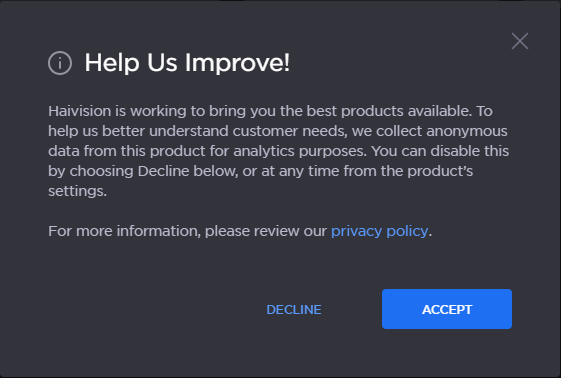
To help improve Haivision products by providing anonymous user analytic data, click Accept. To decline this feature, click Decline.
Tip
If you click Decline or Accept the dialog will not reappear, however, if you click X, the dialog will re-appear at the next sign in.
Administrators can enable or disable this feature any time by going to Settings>Services.
This setting impacts all Kraken Local Users.
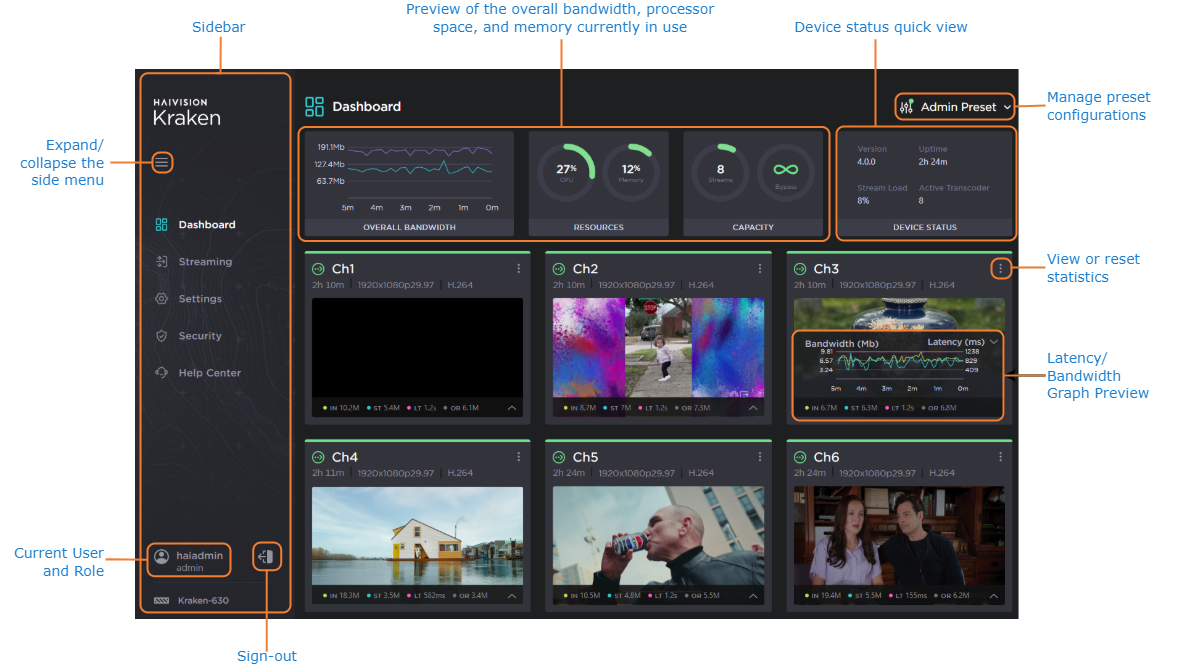
The Web interface opens to the Dashboard.