
Applying a Configuration to a Transmitter
After creating a transmitter configuration, you can apply it to other transmitters belonging to the same family.
In the sidebar, click Appliances to navigate to the Appliances screen.
In the list of appliances, find the transmitter you wish to apply the configuration to.

Note
The transmitter must be online to apply a profile.
Either:
To apply to a single transmitter, click the
 icon >
  Configuration >
  Apply Template or
  Apply SIM Template.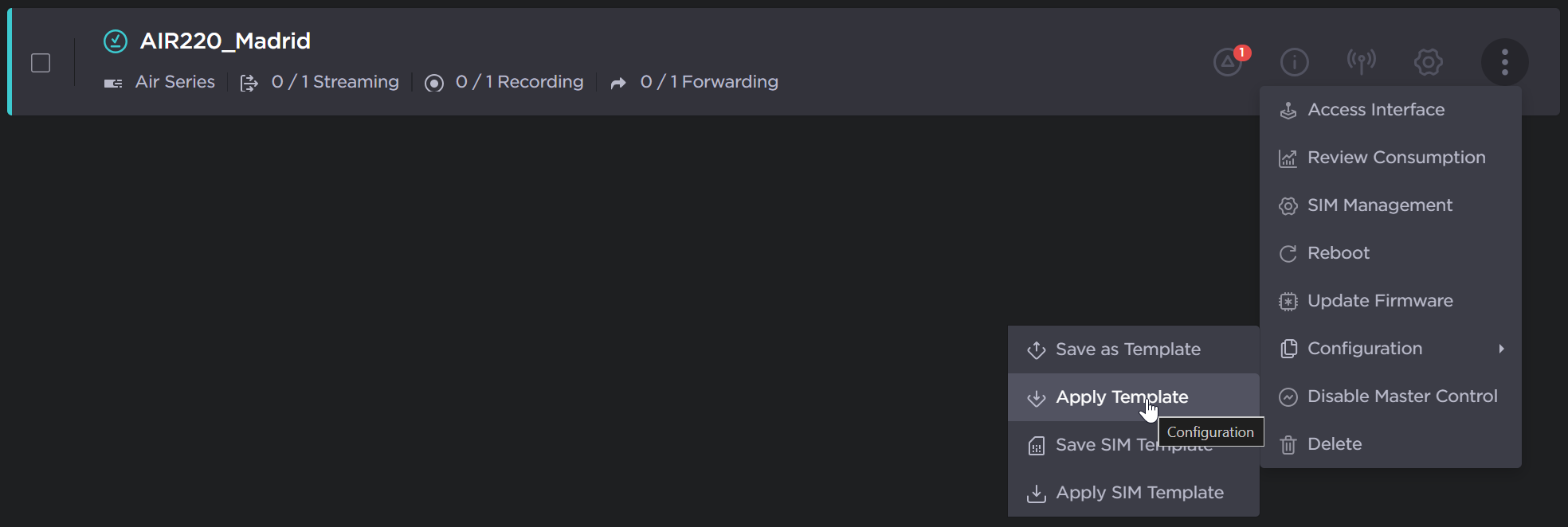
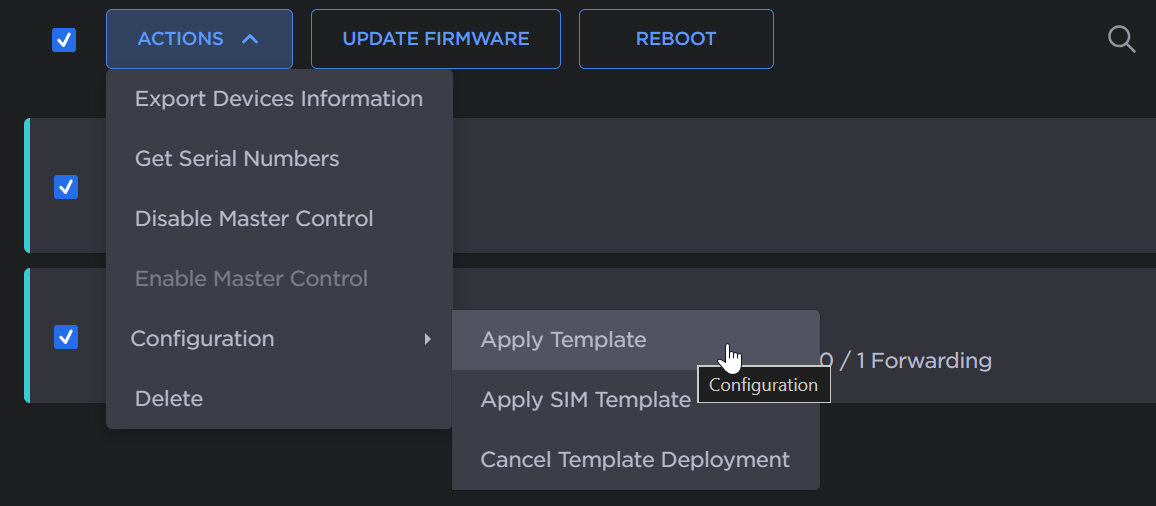
To apply to multiple transmitters, check the checkbox next to each transmitter of the same family, and click the Actions button. Then, click Configuration > Apply Template or Apply SIM Template.
Note
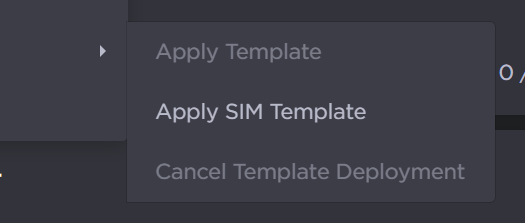
If the Apply Template option is disabled, ensure that only transmitters of the same family are selected. For example:
AIR2x0: AIR220 and Air220-5G
PRO3x0: PRO340, PRO360-5G, and PRO380
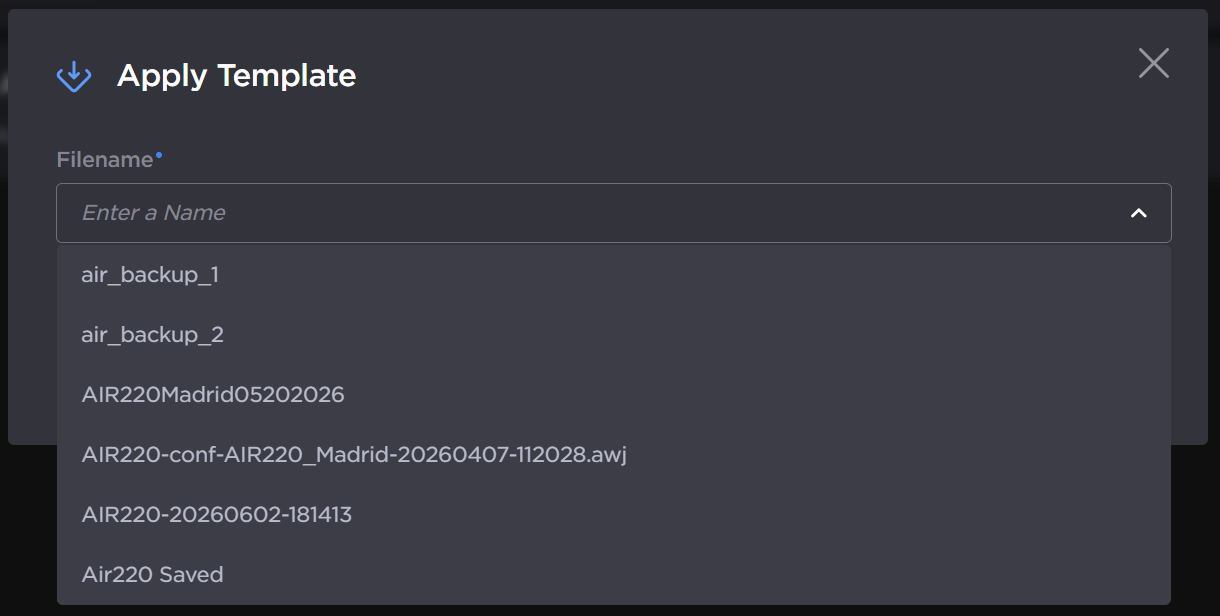
In the Apply Template dialog, select the desired template from the dropdown, and click the Apply button.
Click Confirm in the Apply Template confirmation dialog.
The configuration’s settings are applied to the selected transmitters.

Tip
If any of your selected transmitters are currently offline, the configuration update will be queued and automatically applied once the transmitter comes back online. You can monitor the process in the transmitter’s warning pane:
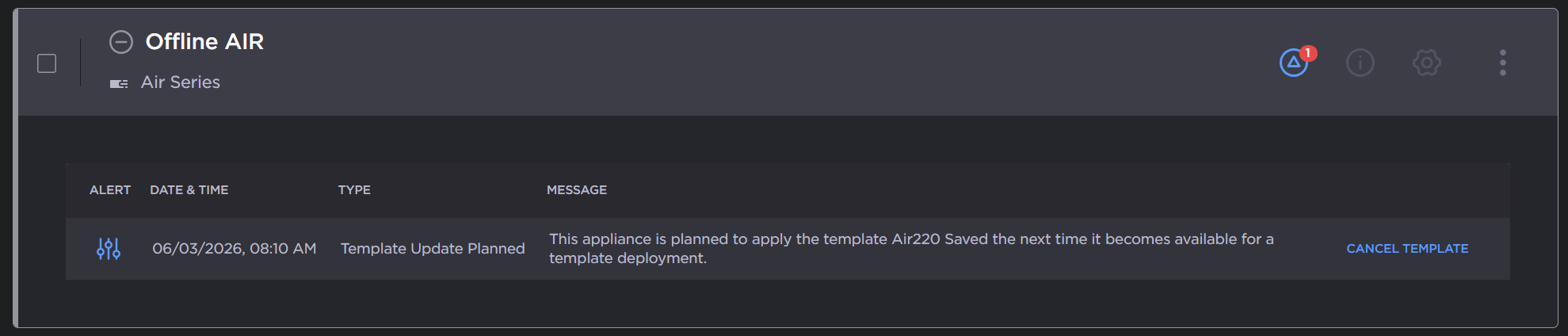
Also, you can remove the update from the offline transmitter’s queue by clicking Cancel Template.