
Signing in to Your Server

Important
After the VM starts, it may take up to 3 minutes for all services to launch, the HMG/HSG sign-on screen to appear, and sign-on to be possible. Please be patient if sign-on fails initially.
Accessing the Web Interface

Note
Internet Explorer is no longer supported. We recommend using Microsoft Edge or Google Chrome.
Open a web browser, and enter the Public IP Address of the virtual server. See the instance listing in the ECS console to find the assigned IP address as shown at the bottom of Creating a Virtual Instance. A message may appear warning that the connection to the server is untrusted. This is normal, and you can safely continue.
Sign in to the Web Interface, using the haiadmin username and the default password as specified in the Important Notice document available on the Haivision Support Portal.
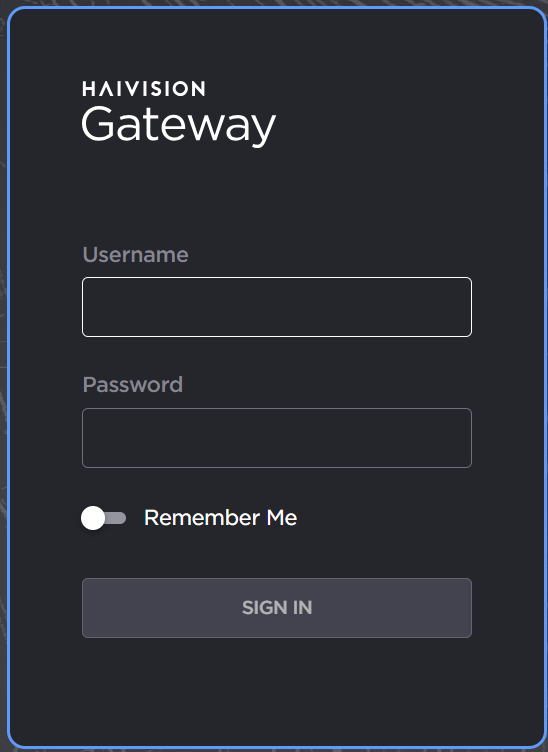
Sign In Screen
Click the Sign In button. A License Required modal appears. See Licensing Your Server to obtain a license.

Add License
For more details, refer to Signing into the Web Interface in the User's Guide.
Accessing the Server via SSH
You can log in to virtual server's Secure Shell (SSH) by using the key that was downloaded when the virtual server was created. See step #3 in Creating a Virtual Instance.
Note
The Console UI is not available for HMP Cloud instances.
In Terminal or Powershell, enter the following command pointing to the SSH private key and public IP address of the virtual server:
ssh -i <private-key_rsa> hvroot@<public-ip-address>
The shell appears.
