
Streaming Screen
The Streaming screen gives you an overview of the currently defined routes, inputs, or outputs, depending on the tab you are viewing. You can expand/collapse the routes/inputs/outputs to list more information.
Various elements appear as shown in the following figure, and they are each described below.
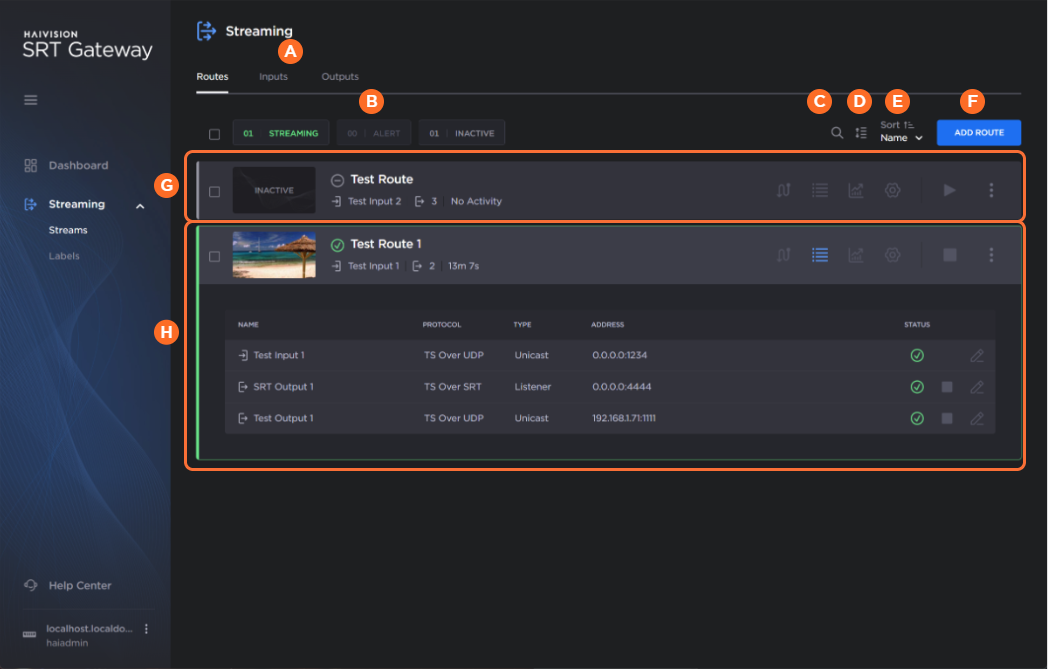
| The tabs along the top of the screen allow you to view the routes, inputs, and outputs. |
| The route/inputs/outputs status buttons (streaming/active, alert, or inactive) can be used to filter the route/inputs/outputs list. |
| Clicking the |
| Routes list only. Clicking the |
| The Sort dropdown allows you to sort the list by name or status. You may also select the desired sort order. |
| Click to add a new route/input/output. See Creating a Route. |
| When collapsed, the listing shows the thumbnail preview (route list only), status, and a summary of the route/input/output information. Action buttons are available to edit the route, show inputs/outputs pane (route only), show statistics pane, show settings pane, start/stop the route, and more options to duplicate and delete the route/input/output. See the following for a description of the status icons. |
| When expanded, the listing opens a pane depending on the action button clicked.
|


Status Icons
Hovering over the status icon shows more details regarding the status.
Icon | Description |
|---|---|
| Active with data flow. |
| Connection in progress. |
| Inactive/Idle. |
| Starting or updating route/input/output. |
| Stopping route/input/output. |


