Enabling Diagnostic Logging
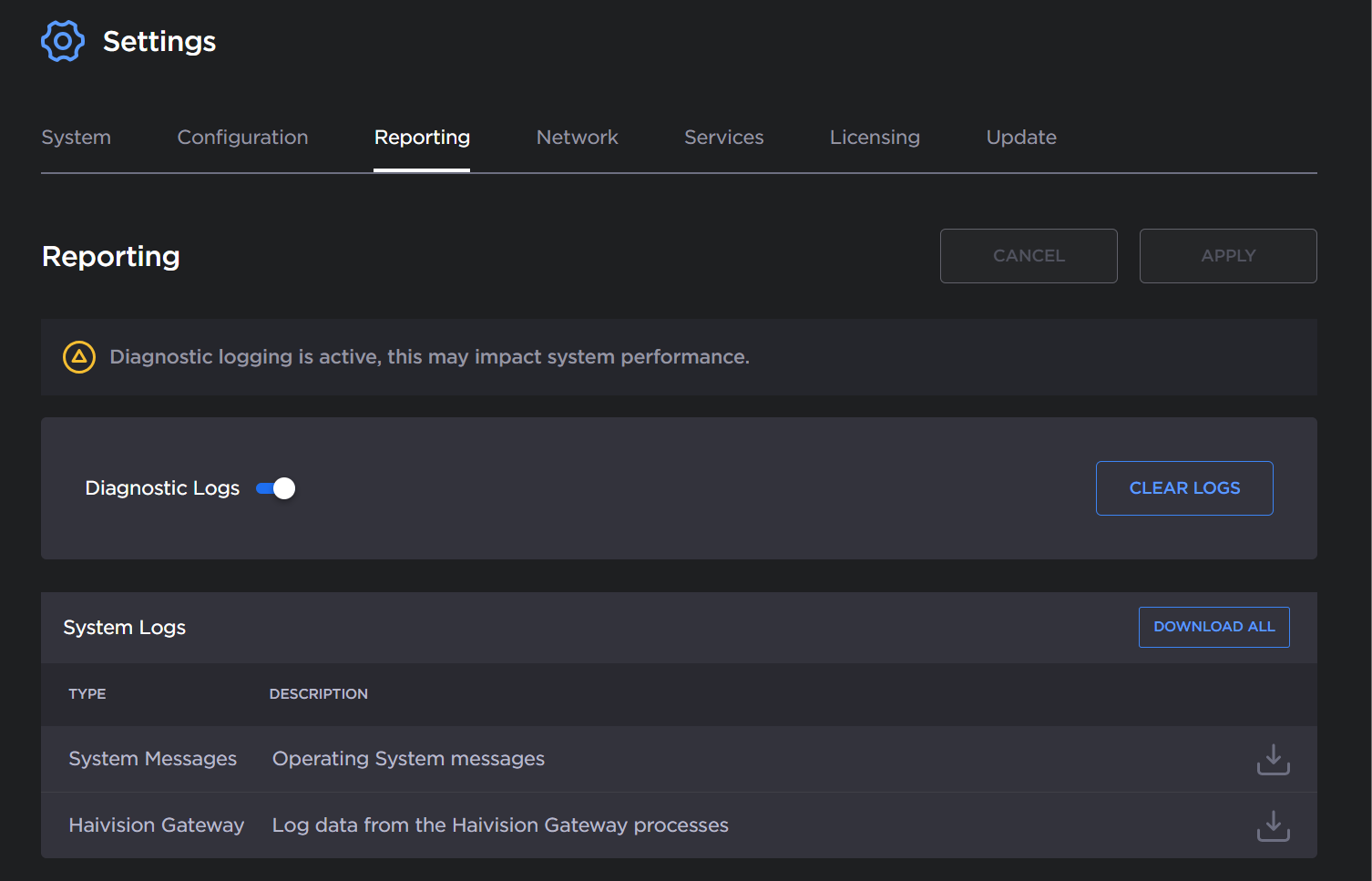
From the Reporting screen, you can switch on and off diagnostic logging. By default, logging is disabled.
To enable logging:
In the bottom of the sidebar, click
 >
>  Settings.
Click Reporting in the navigation toolbar.
Toggle the Diagnostic Logs button to On.
Confirm you would like diagnostic logging on by reading the note that appears and click the Apply button.

Important
Diagnostic logging impacts system performance and should be enabled only as a temporary troubleshooting measure.
Diagnostic files are not deleted automatically and eventually consumes all available disk space if left enabled. See the following section.
When diagnostic logging is disabled, the logs stay on the server.
Clearing Diagnostic Logs
When diagnostic logging is enabled, the logs can be cleared at any time by clicking the Clear Logs button. The previous logs are deleted from the server, and new log files are created.