
Connecting the Source to the Cloud-Hosted Gateway
If you followed the steps in Creating your Workspace (Optional), switch to the Gateway's browser tab. Else, enter the URL for the Media Gateway/SRT Gateway encoder web interface and sign in when prompted.
On the Streaming page, click the Inputs tab, and click the Add Input button.
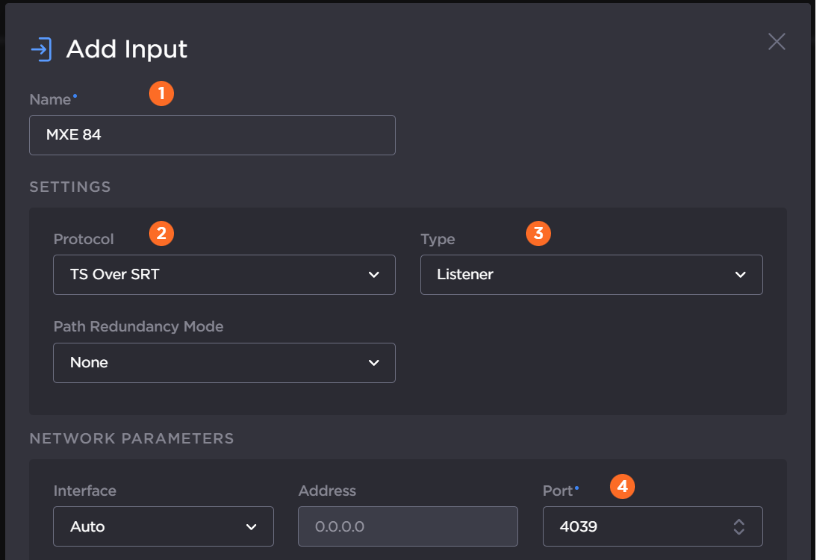
When the Add Input dialog opens:
Supply an
 input name.
Specify the
 protocol as TS Over SRT (for this example).
Set the
 type to Listener.
Enter the
 port from the input encoder.

Tip
If needed, switch to the Makito X4 Encoder browser tab to acquire this information
Click the Add Input button.
On the Streaming screen, switch to the Outputs tab, and click the Add Output button.
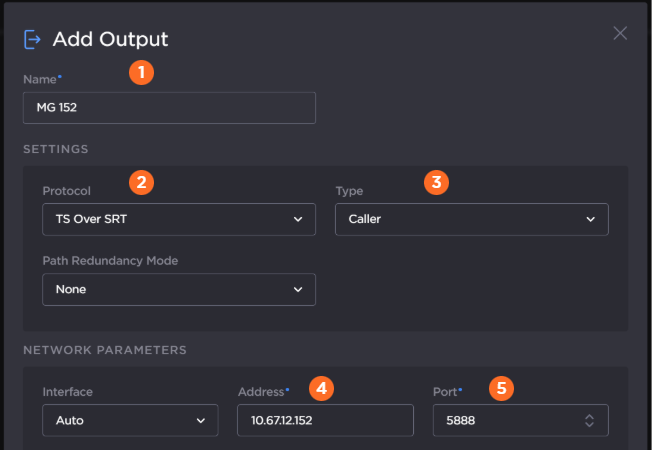
In the Add Output dialog, enter the information for the LAN-based Gateway:
Provide a
name.Change the
protocol to "TS over SRT" and change the type to "Caller."Enter the
address and the  port of the output.

Note
Protocols and types can have different configuration requirements. Data fields appear or disappear depending upon your choices. As just demonstrated, SRT protocols require an address and port when they are running in Caller mode.
Tip
If needed, switch to the LAN-based Gateway browser tab to acquire this information.
When finished, click Add.
On the Streaming screen, click the Routes tab.
Click the Add Route button.
On the Add Route dialog, enter a name for the route, and click the Add button.
In the Route Editor screen, drag and drop the Input and then the Output that you created in the previous steps.
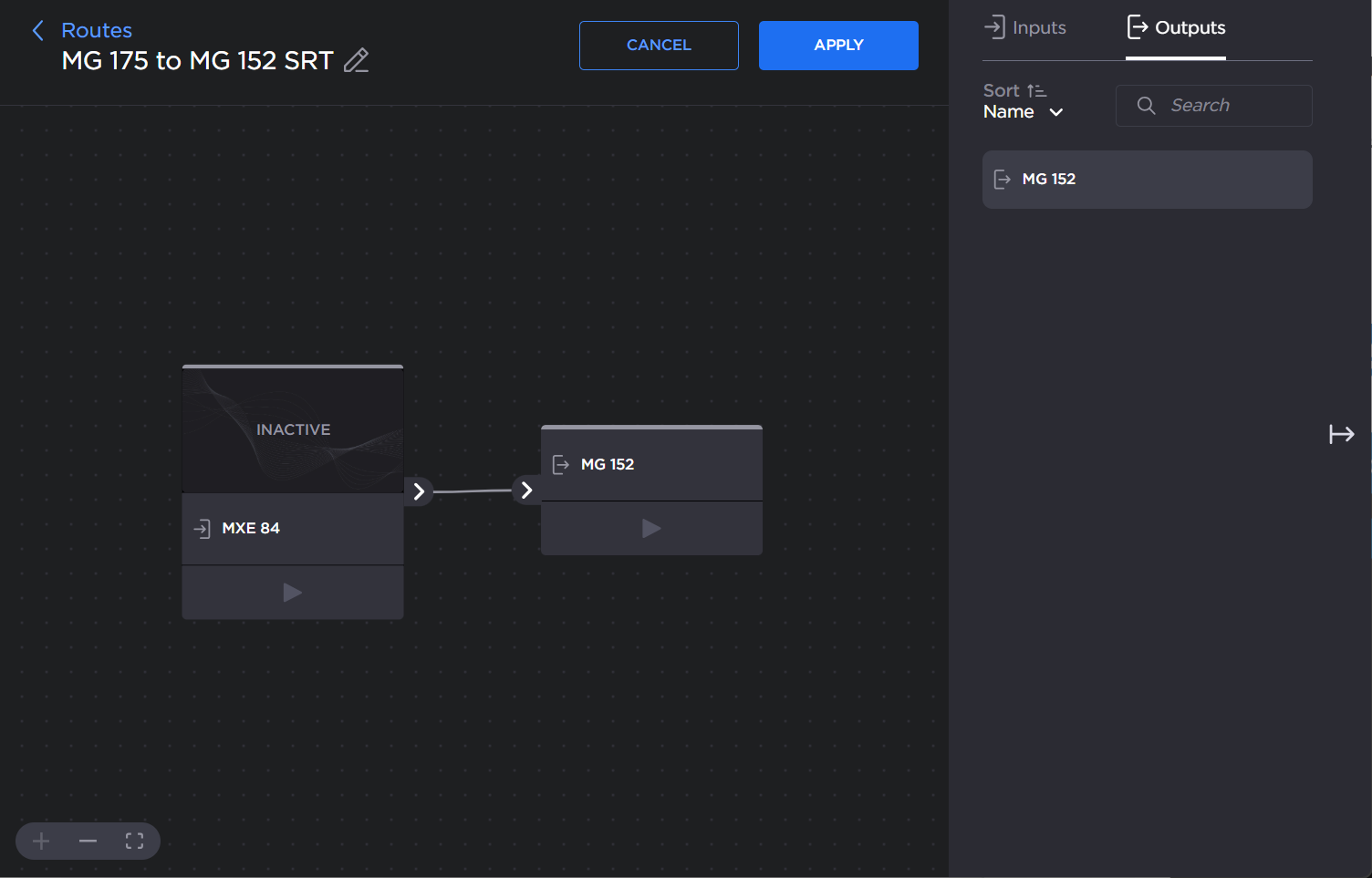
Click the Apply button, and click the < Routes link at the top to return to the routes list.
Click the
 button to start the route and verify that the status indicators change to green.