
Changing an Account’s Password
Any changes that you make to an account's password are persistent and are not overwritten during an update.
To change an account password from the web interface:
In the bottom of the sidebar, click
 >
>  Security.
Click Accounts in the navigation toolbar.
Click the
 icon next to the Account Name whose password you want to change.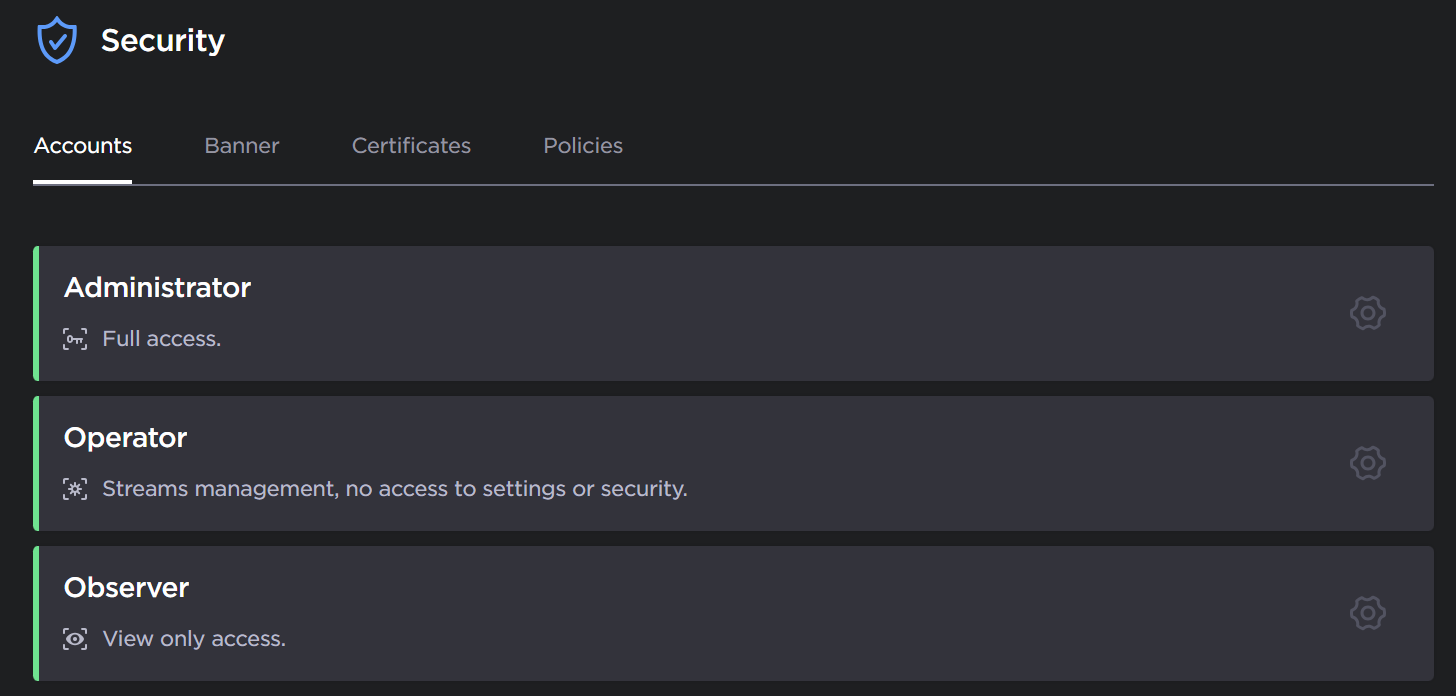
Accounts
Enter your current password and a new password. Then re-enter your new password to confirm it. Note the following password requirements:
Minimum 15 character password length
At least one upper-case character
At least one lower-case character
At least one numeric character
At least one special character
Must differ from old password by 8 characters. For example, old password:
PasswordOld1234$vs. new password:PasswordNew5678!
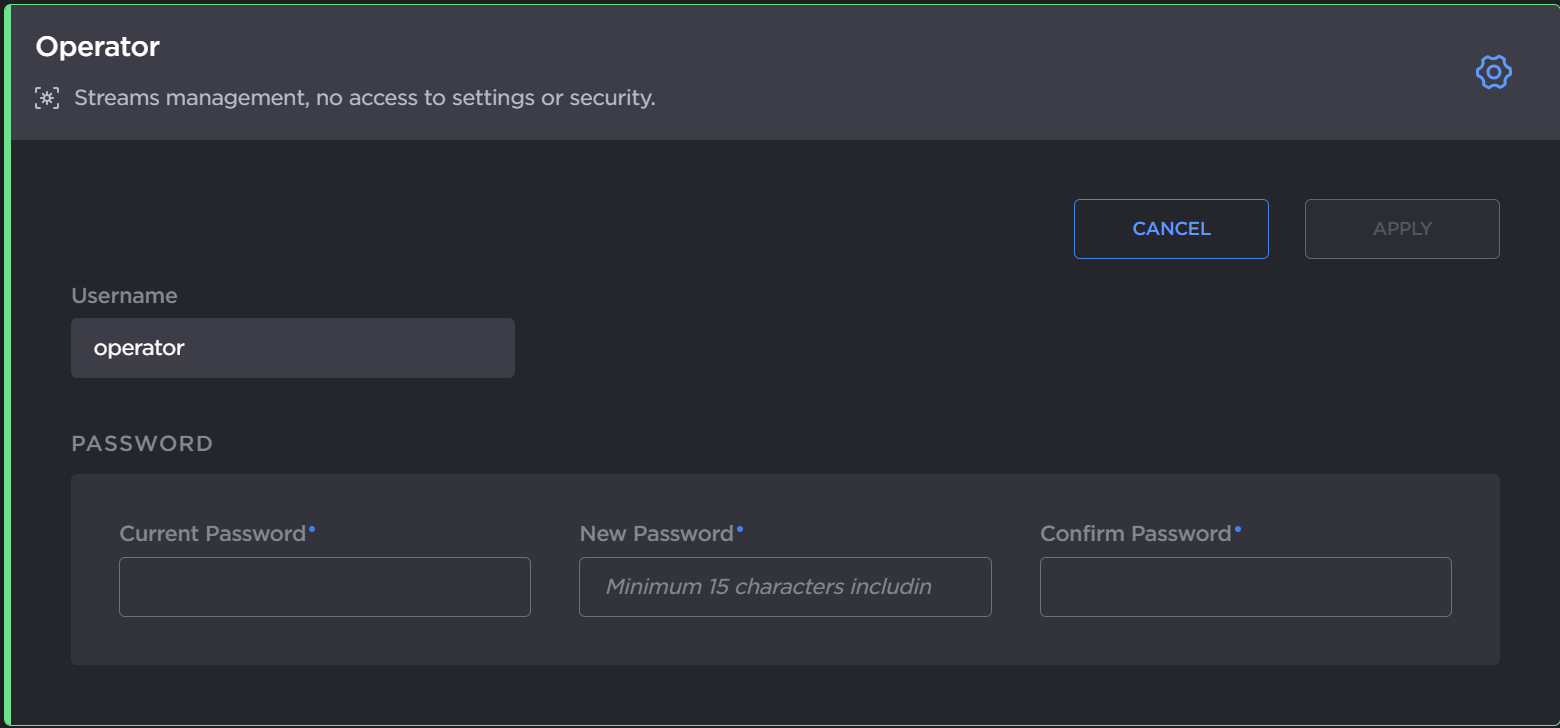
Change Password
Click the Apply button.

Note
The haiadmin and hvroot password can only be changed in the Console UI. See Using the Console UI with Haivision Hardware for details.