
Starting a Live.
You can start a live manually or you can enable the Auto-live at startup. See Enabling/Disabling Auto-Live at Startup.
Before starting a Live, you can check the configuration set previously for the device.
From the Home screen, tap  to display information:
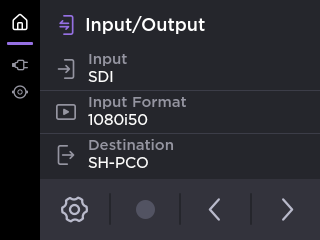
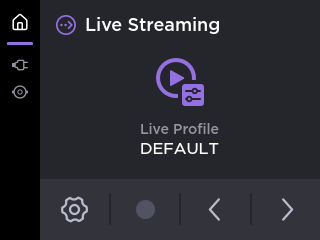
From the Home screen, tap the preview thumbnail on screen.
Tap
 .
.
The video preview appears on screen and appears in the bottom bar.
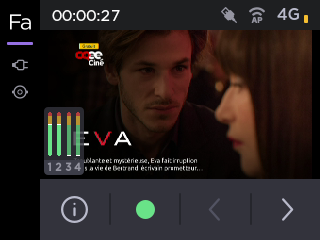

Note
When Auto-record is enabled, tap the screen to have additional indications:
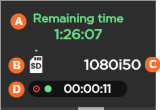
A- Remaining recording time possible on SD card
B- Space used on SD card
C- Source Standard
D- End-to-end Latency
Connection Loss during a Live with Simultaneous Record
Recordings of your Live events will continue even if the network connection is lost and Live is interrupted.
If the network connection is lost:
You will receive an error message.
Tap OK to return to the Live preview, where you will see the recording still in progress.
Tap
 to view the resolution and remaining recording time possible on the SD card.
To start the Live:
On the Dashboard, in the Streams section, click the
 icon to check that the unit settings are configured and selected as required.
Note
If you enable the Auto-Record option, the video file is automatically recorded during the live.
Click the Save button.
Click the
 icon to start the Live.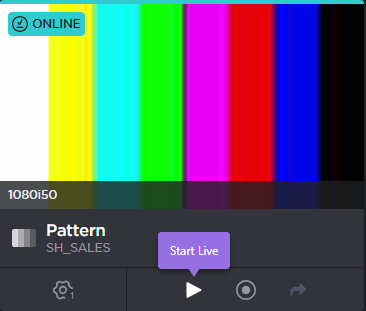
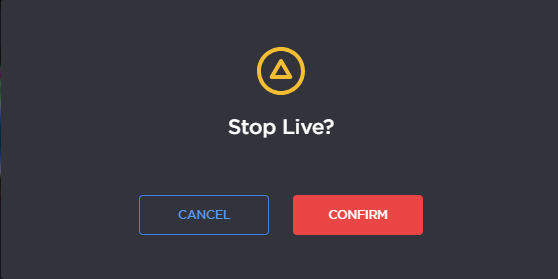
To stop the Live:
Click the
 icon.
icon.Confirm to stop the video transmission.
Connection Loss during a Live with Simultaneous Record
Recordings of your Live events will continue even if the network connection is lost and Live is interrupted.
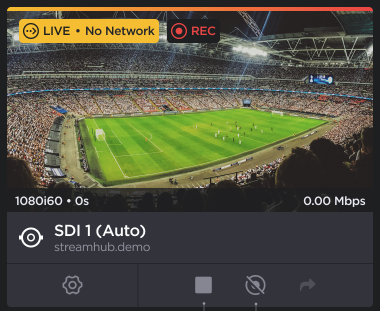
Network loss will be indicated by the No Network warning on the Live preview panel. When this occurs, you have the option to:
Stop the Live and the Recording by clicking the

Stop the Recording only by clicking the

Note
The Forward 
Note
Before starting a live, make sure that the REC button, the Live profile, and the Destination profile have been configured. Please see Configuring the Camera's REC Button and Configuring Live Profiles.
Press the camera's REC button.
The Live is in progress.