Starting a Live

Before starting a Live, you can check the configuration set previously for the device.
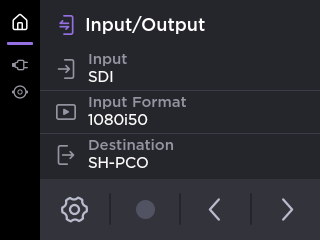
From the Home screen, tap to display Input/ Output information:
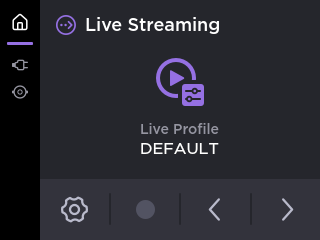
Tap a second time to display Live Profile information:
From the Home screen, tap the preview thumbnail on screen.
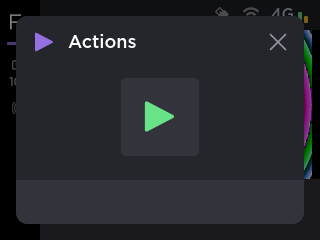
Tap
 .
.
The  icon appears on the bottom bar, and a timer shows the Live duration on the top bar.
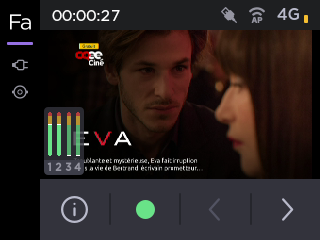

Note
When Auto-record is enabled, tap the screen to have additional indications:
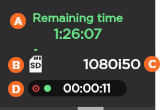
A- Remaining recording time possible on SD card
B- Space used on SD card
C- Source Standard
D- End-to-end Latency
Connection Loss during a Live with Simultaneous Record
Recordings of your Live events will continue even if the network connection is lost and Live is interrupted.
If the network connection is lost:
You will receive an error message.
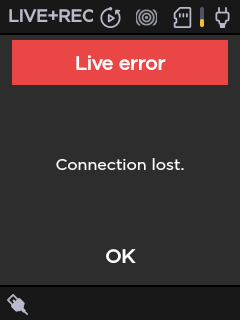
Tap OK to return to the Live preview, where you will see the recording still in progress.
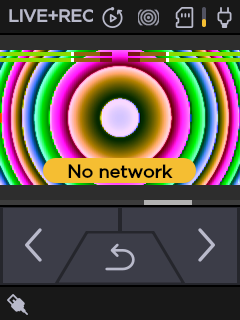
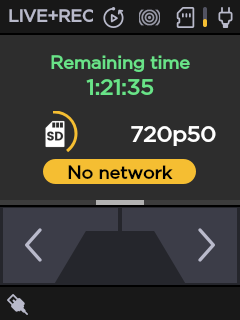
Tap
 to view the resolution and remaining recording time possible on the SD card.