
Upgrading Command 360
This topic describes how to upgrade Command 360 via the web interface.

Note
Before continuing, please note:
This upgrade method does not update the operating system or require re-initialization of appliances.
On multi-appliance systems consisting of a Command 460 Manager, Video Processor, and CineAgent, the full upgrade process can take approximately 45-60 minutes. The majority of this time is spent on UpgradeBackup creation, as this step runs sequentially—one server at a time. As a result, the more servers that are present in an environment, the longer the upgrade process.
Before initiating an upgrade, it’s recommended that you set your user timeout settings (via Site Settings > User Timeout) to at least 120 minutes.
Disable Macrium Image Guardian before attempting an upgrade.
To upgrade to a new version of Command 360:
Click the user icon in the top right and select Admin.
Click Site Settings on the side menu.
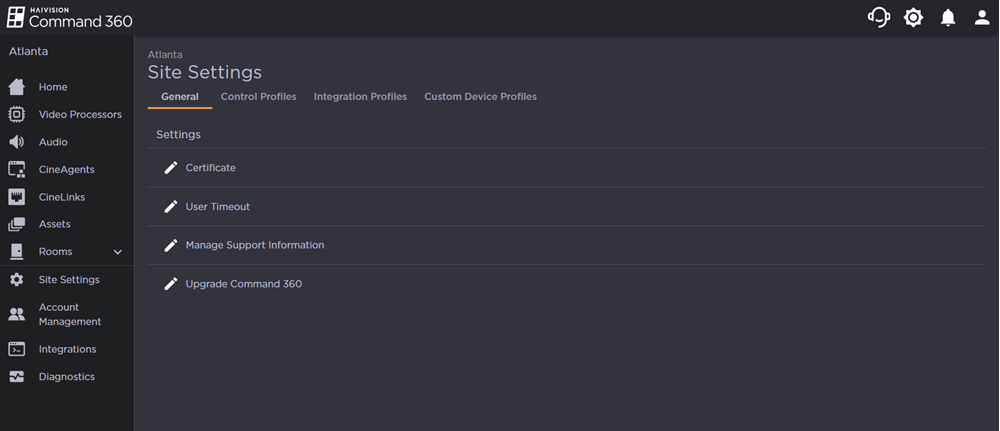
Click the
 icon next to Upgrade Command 360.
Confirm all appliances are online and upgrade files are at the ready, then click Next.
Note
The following upgrade files are required:
Command360.Upgrade.4.5.13+r1013.exe
Command360.WallDriver.exe
SupportToolkitCLI.exe
Click Upload Files and select the first upgrade file from your machine.

Important
Upgrade files must be uploaded one at a time. Attempting a multi-file upload results in an error.
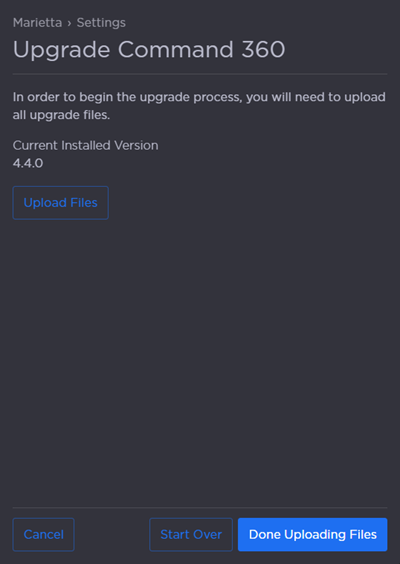
Confirm the first file has been added, then click Upload Files again.
Upload the second file, confirm, then upload the third file.
Confirm all files have successfully uploaded, then click Done Uploading Files.
Once the upgrade is initiated, video walls will continue to show content but interactions with the system should be minimized during this process.