
Dynamic Assets
Dynamic assets allow you to rotate the content from 2-4 different assets without creating a Behavior. Dynamic assets are created within an activity and can only be comprised of assets within the same activity.
To create a dynamic asset:
On the Activity Interface, click the asset tray icon in the lower left corner.
Click the Add Assets icon.
On the Asset Manager screen, click the Create Asset button.
Select Dynamic.
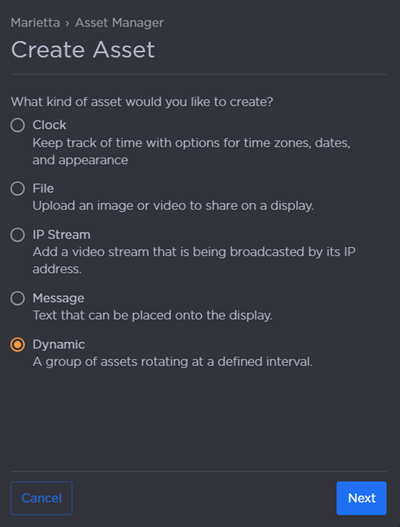
Click Next.
Enter a Name for the asset.
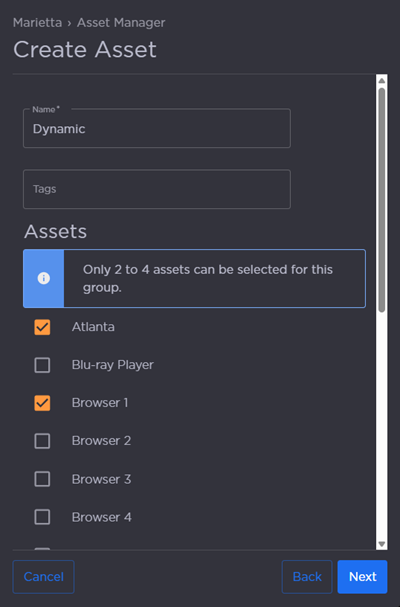
(Optional) Add Tags.
Check the box next to each asset that will be part of this group.
Click Next.
Click and drag the Asset Duration slider to adjust how long each asset is displayed before cycling to the next one in the sequence.
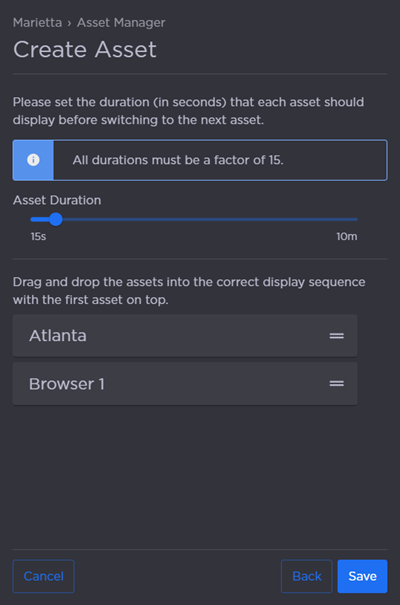
Use the drag handles to adjust the sequence of assets. The asset at the top of the list is displayed first.
Click Save.
The dynamic asset can now be added to the asset tray and applied to the display.