Creating a Macrium Backup
This topic describes the process for creating a Macrium backup restore point. This should be performed for each appliance in an environment prior to upgrading the Command 360 version.
To create a Macrium backup:
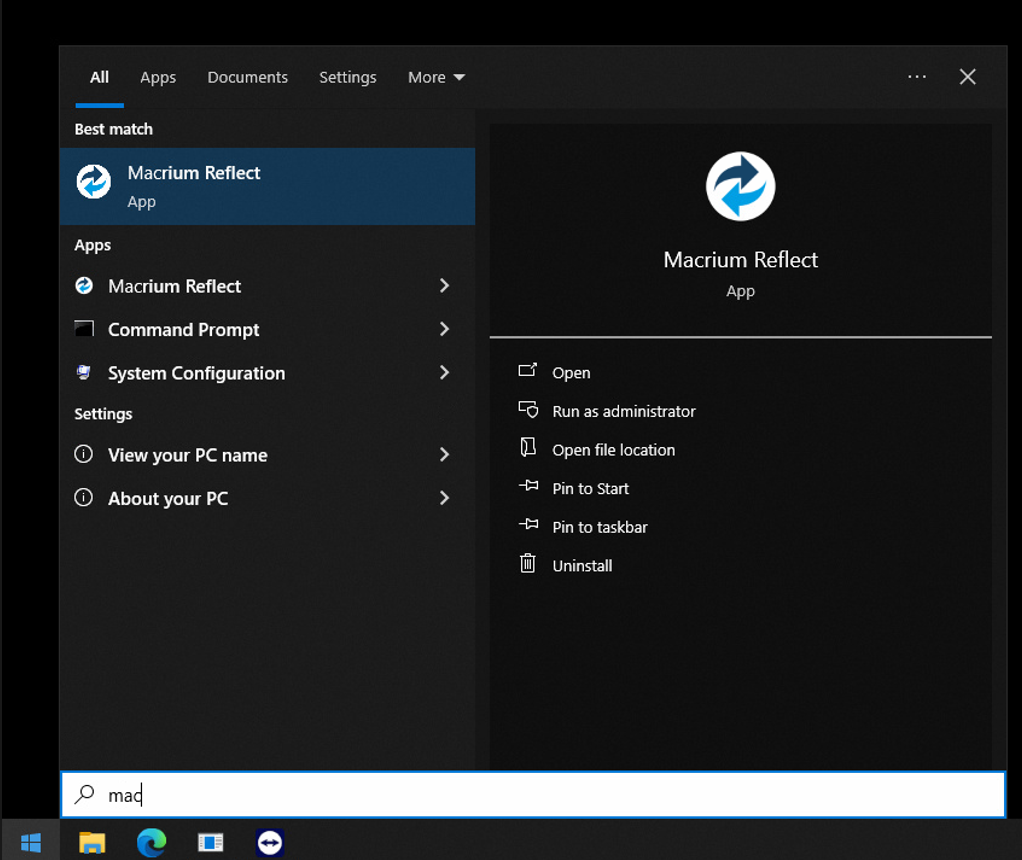
Open Macrium Reflect.
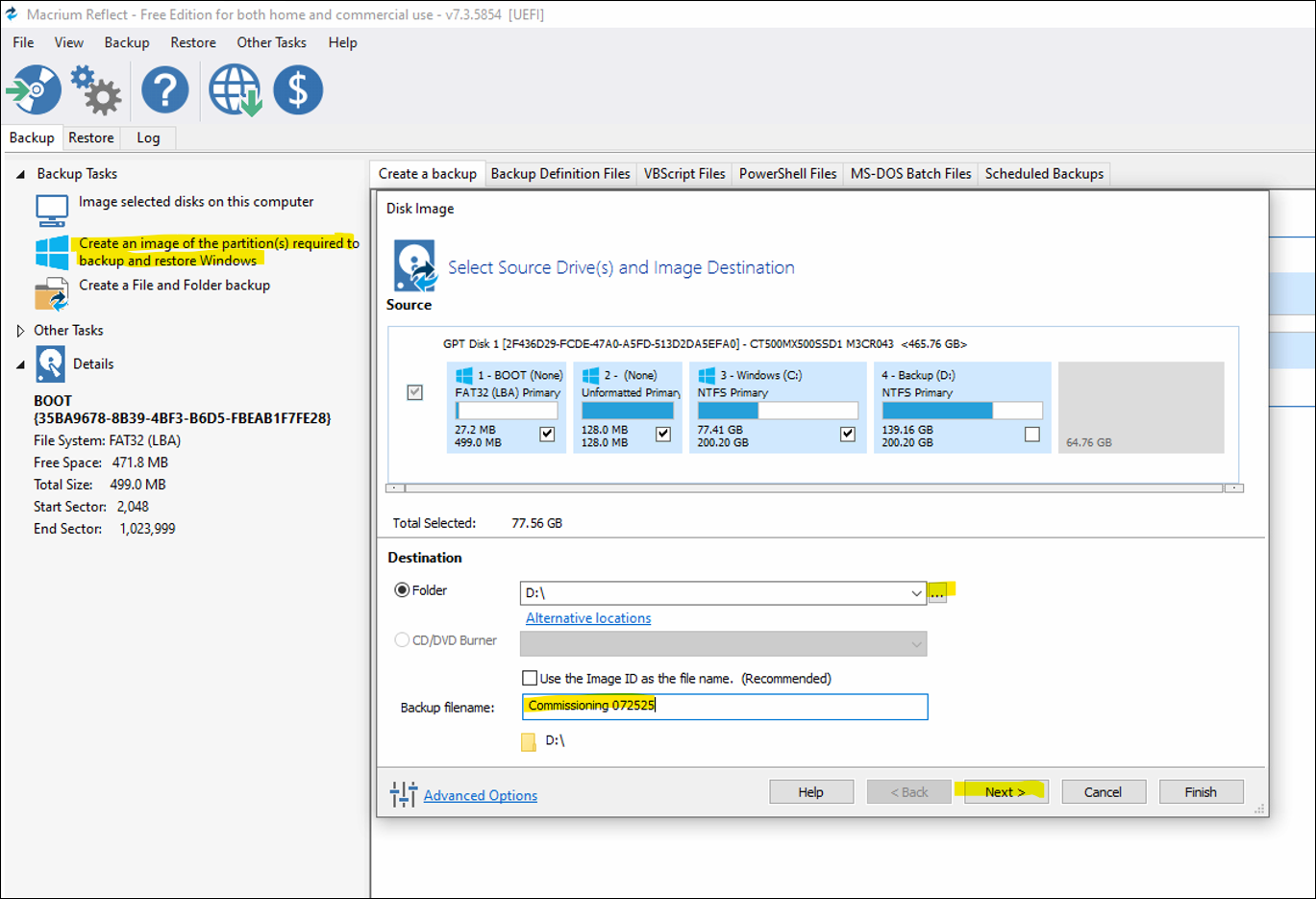
Click Create an Image.
Under Folder, select the backup drive partition location.
In the Backup filename field, use the trip identified (Install/Commissioning/Upgrade/Support) date.
Click Next.
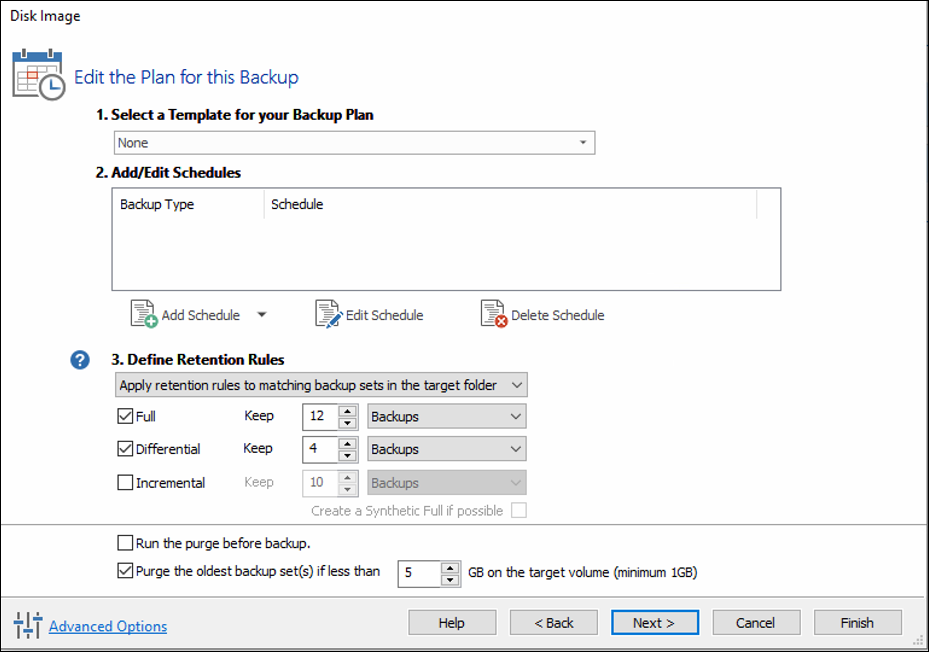
Click Next on the next window.
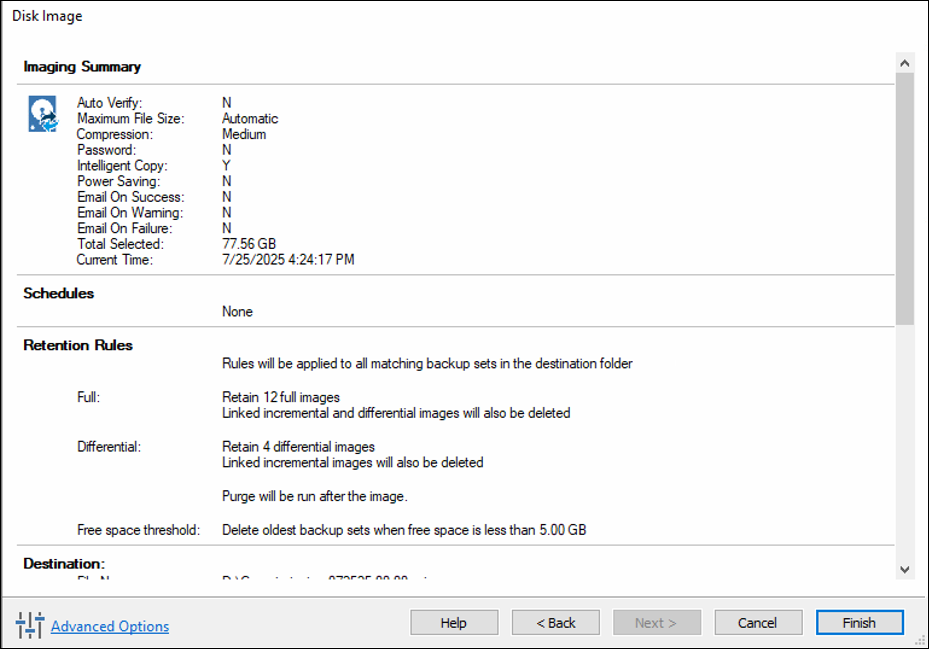
Click Finish.
Uncheck the Save backup and schedules as an XML Backup Definition File option.
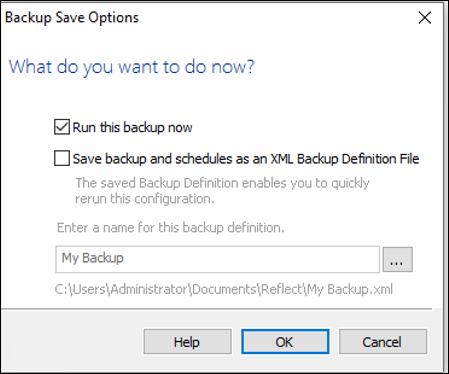
Click OK.
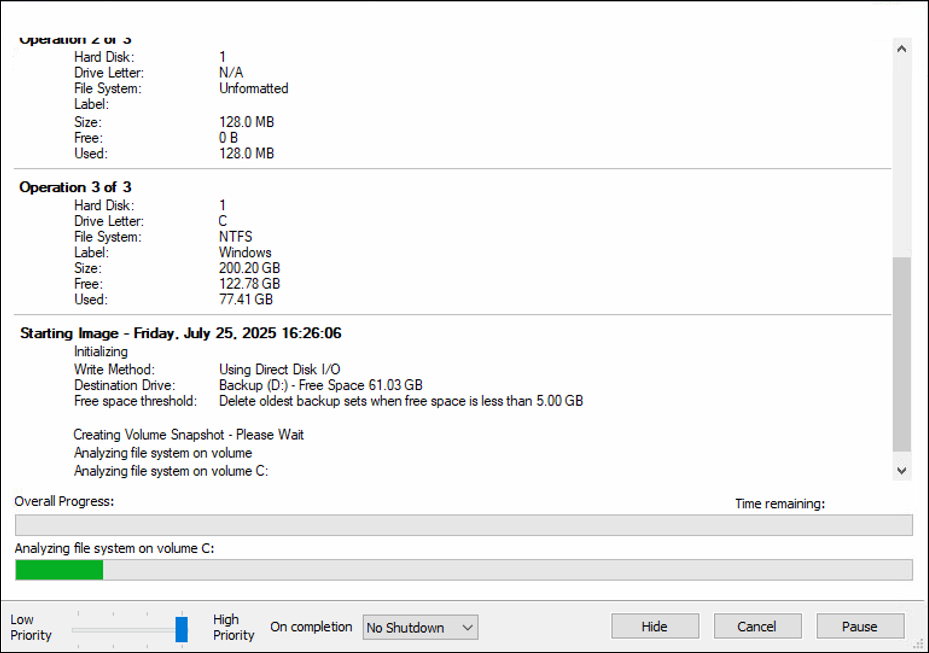
Macrium will now create a backup, this may take up to 20 minutes.