
Command 360 Installer
The Command 360 Installer allows you to set up and configure an appliance to be used in a Command 360 system. The following information is needed before proceeding:
Appliance serial number
Appliance model information
Command 360 license key

Note
The Installer must run on each appliance that will be part of your environment.
To install Command 360:
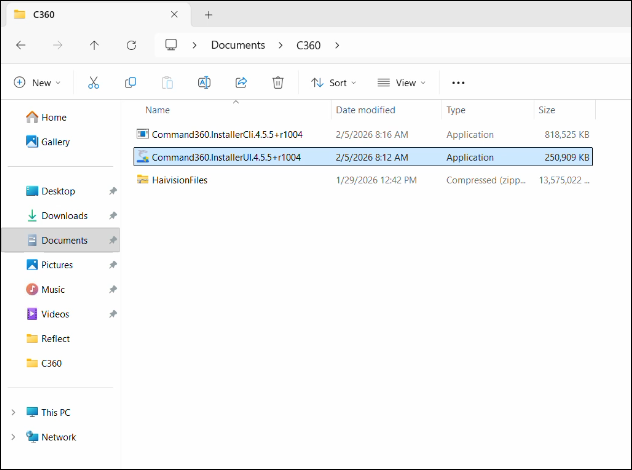
Locate the installer file and double-click it to launch the install process.
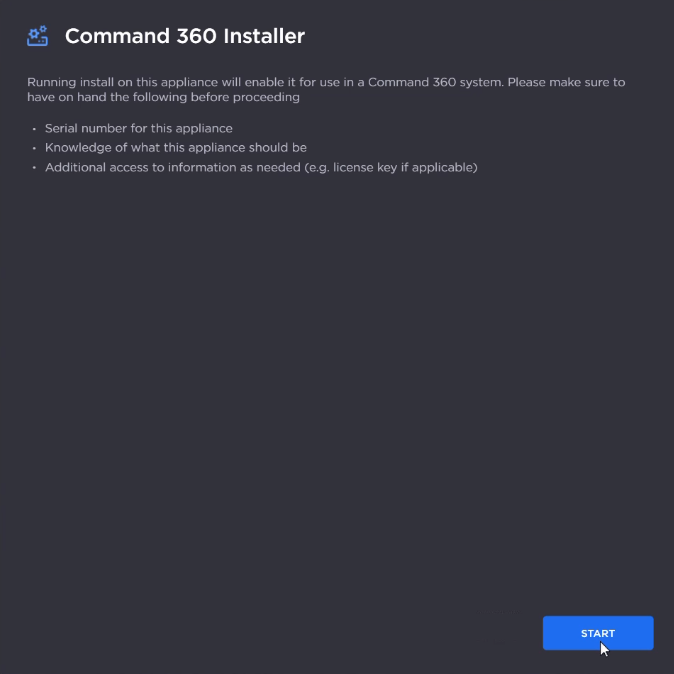
Confirm that you have the necessary information to proceed and click Start.
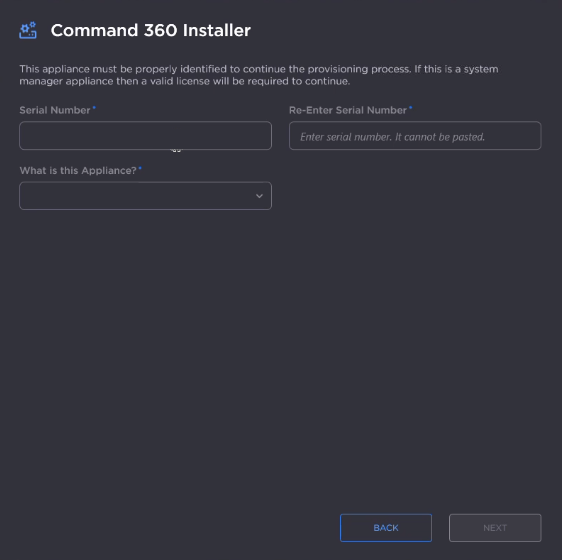
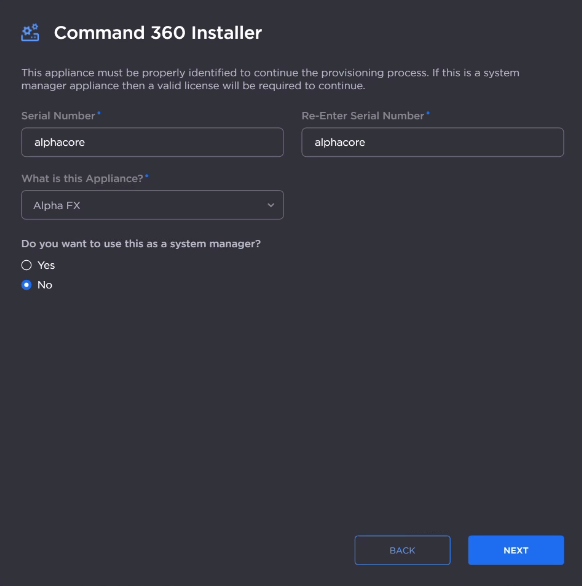
Enter the appliance serial number in the Serial Number and Re-Enter Serial Number fields.
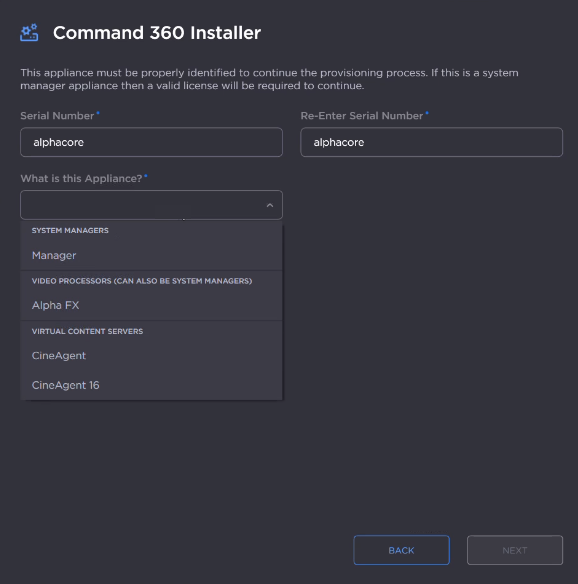
Click the What is this Appliance? drop-down and select the appliance you are installing.
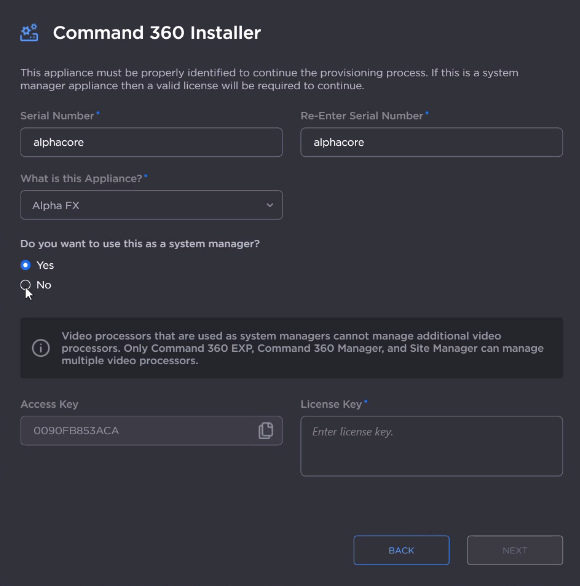
If installing a Manager or Video Processor, select whether this appliance will serve as system manager.
If Yes is selected in the previous step, enter the Command 360 License Key.
Click Next.
Confirm the desired system settings, then click Finish.
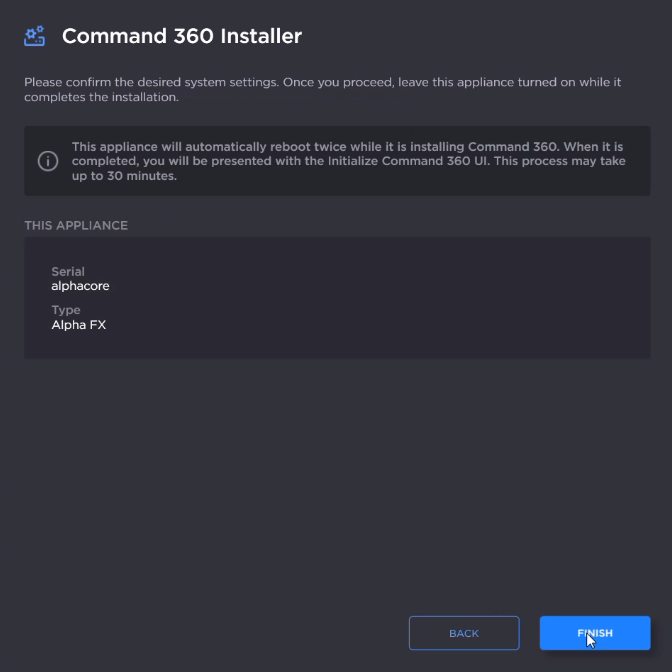
As noted in the interface, the appliance will automatically reboot twice during installation. This process may take up to 30 minutes. When completed, you are presented with the Command 360 Initialize interface.