
Adding Appliances

Important
Before continuing, please note:
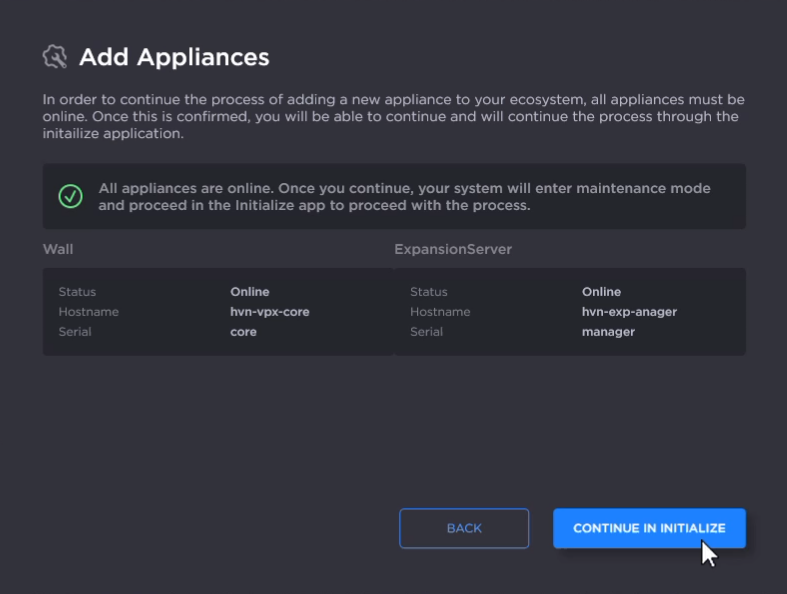
Ensure all appliances are online before launching this process.
You must have recent backups for all appliances in your system before proceeding. Failure to do so may result in a complicated recovery process if an error occurs.
Please confirm that all non-control screen displays are unplugged from video processors before proceeding.
To add appliances:
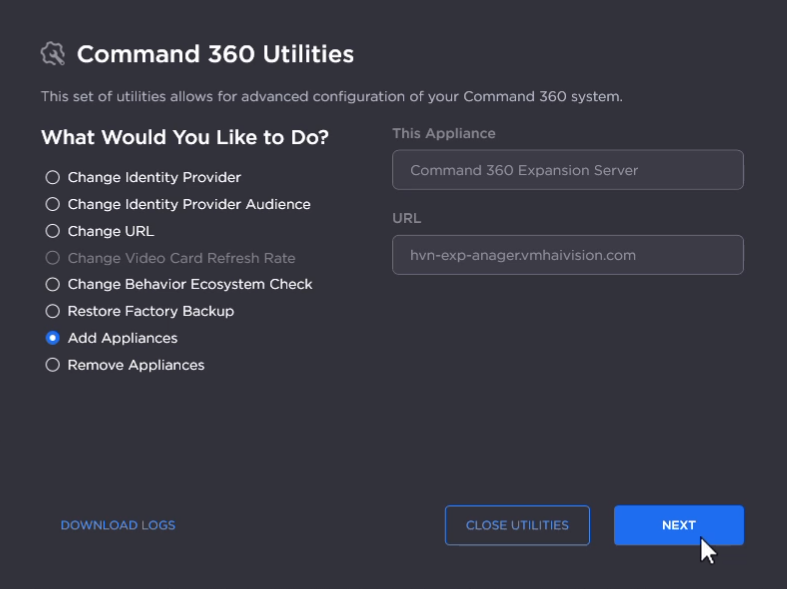
On the Utilities Welcome screen, select Add Appliances and click Next.
Confirm that the desired appliances are online and discovered by Command 360. Click Continue in Initialize.
Click the checkbox acknowledging that recent backups have been made for all appliances in your system.
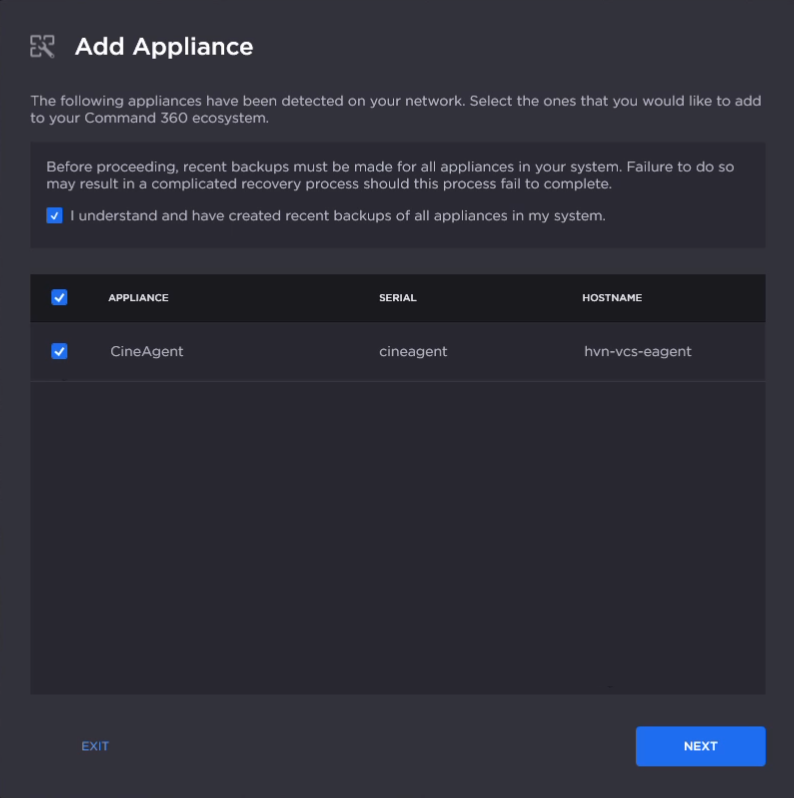
In the Appliances pane, click the checkbox next to each appliance you wish to add to your system.
Click Next.
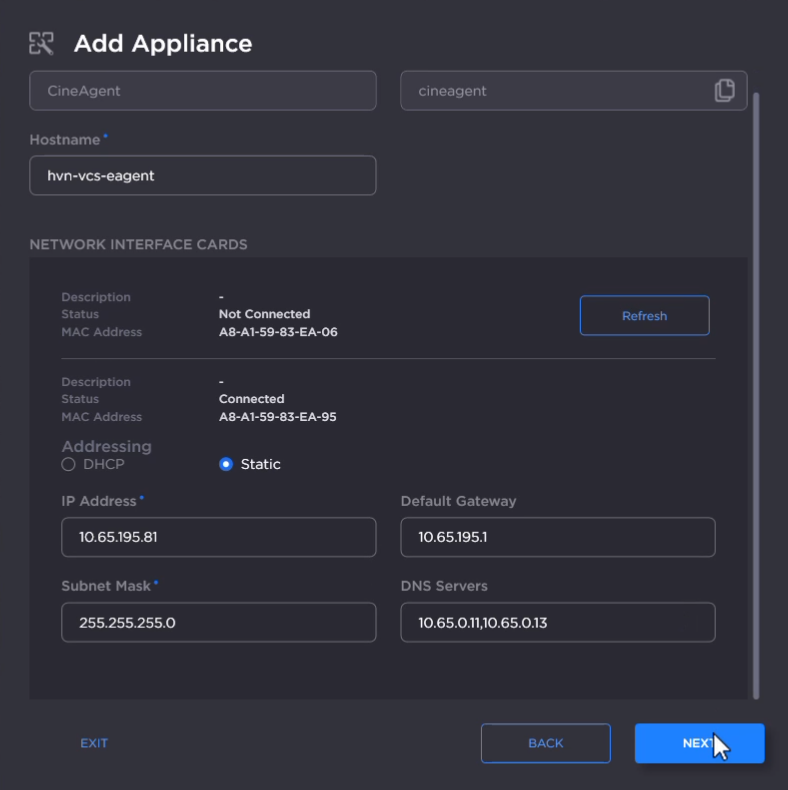
Under Network settings to modify, select Hostname and IP addresses (Recommended) or Do not modify networking settings (Advanced Users Only).
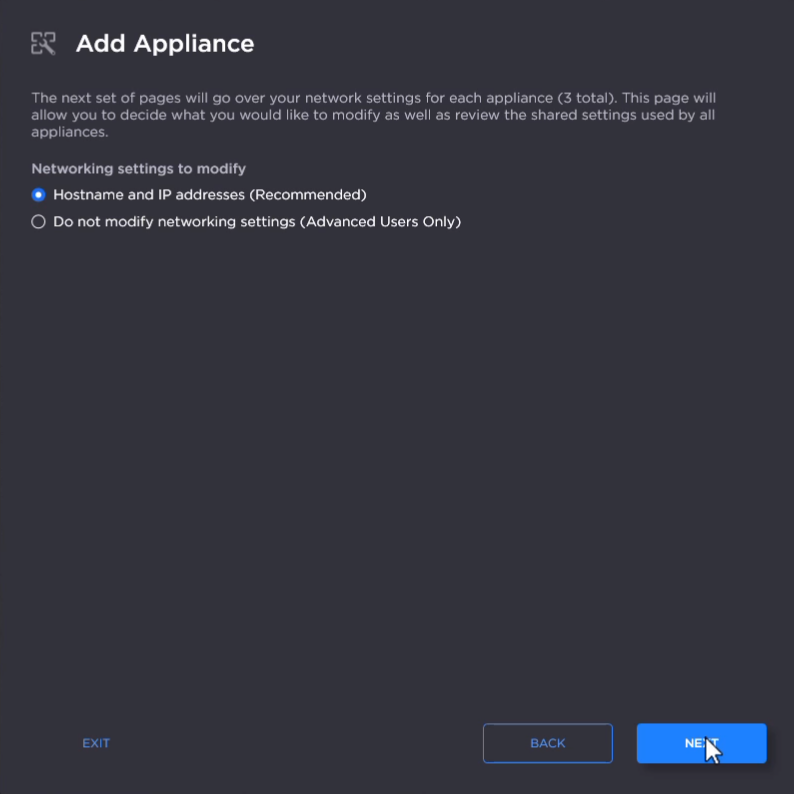
Click Next.
Confirm any network modifications and click Next.
Confirm the desired system settings, then click Finish.
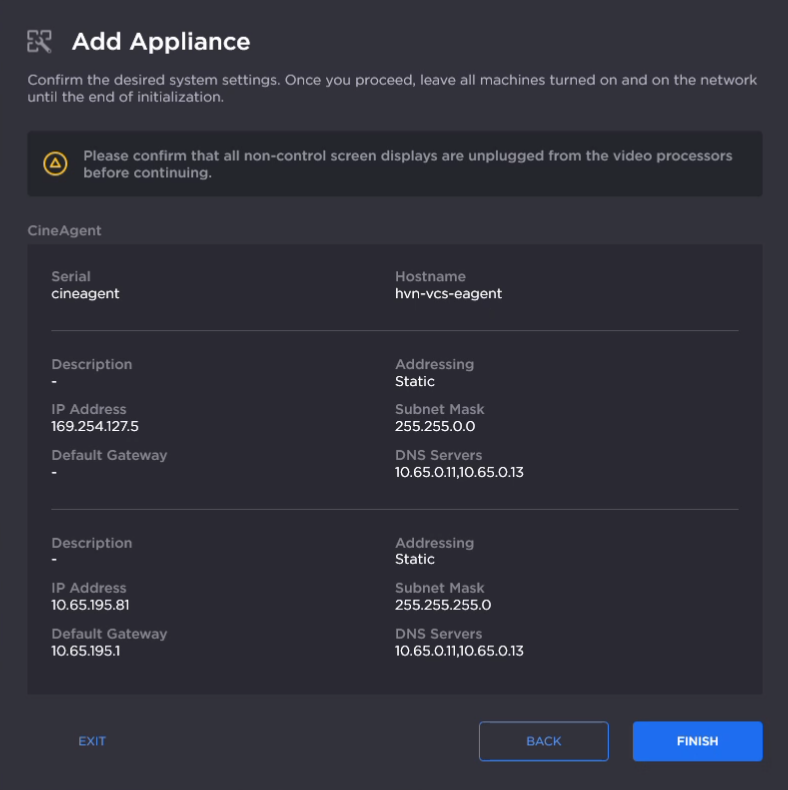
The selected appliances are initialized into your Command 360 system.